Task List for Decision Making
A list of automation requests that require inputs from a process SME is displayed upon logging into the Albie Decision Workbench. Process SME may browse the automation requests in the view of choice amongst the card and the list view. Process SME can refresh the task list by clicking on the refresh button.
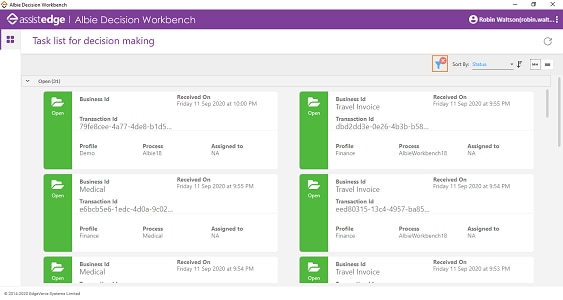
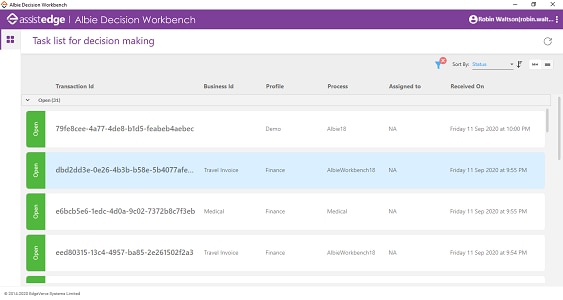
Following is the description of each of the columns.
S.No. |
Column Name |
Description |
1. |
Status |
The left strip on each task indicates the current status of the automation request. The status of automation request could be a) Open, b)In-progress, c)Escalated or d)Closed. |
2. |
Last updated at |
The information pertaining to time at which last action has been taken on the request is displayed right below the status in the list view and below the transaction ID in the list view. This information is not available in case the request has not been worked upon yet. |
3. |
Business Id |
A contextual identifier that can be configured in the process workflow using the Decision Workbench activity in Automation Studio. It gets dynamically assigned to a task in the runtime as per the current value of the mapped parameter. The SME can easily identify the tasks, especially of the same process using the business identifier. |
4. |
Transaction Id |
A unique identifier of the automation request that comes in handy for any offline collaboration between process SMEs. |
5. |
Profile |
This column indicates the profile to which process has been mapped. The profile also plays an important role in access control as per business needs. |
6. |
Process |
This column indicates the process for which automation request is being executed. |
7. |
Assigned to |
This column displays the name of the process SME who is working or has worked on the automation request in order to provide required inputs. |
8. |
Received on |
This column indicates the time at which the request was received on the workbench |
NOTE: |
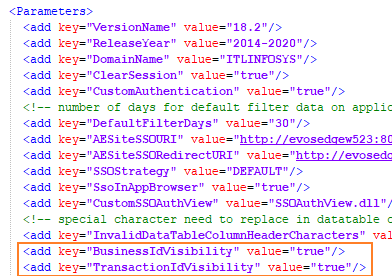
· You can disable the Transaction Id or Business Id by changing the configuration settings. To change the configuration settings: a. Navigate to client-tools > AutomationRuntime > AlbieDecisionWorkbench > AlbieDecisionWorkbench.exe.config file, and open to edit the file. b. Under the Parameters tag, change the value of the BusinessIdVisibility or TransactionIdVisiblity key as false to disable the display of the required Id in the Albie Decision Workbench application.
· If value of both the keys are set to true, both Ids are visible in the Albie Decision Workbench application. |
Following table provide the relevance and description
each of the statuses.
S.No. |
Status Name |
Description |
1 |
Open |
The request is available in available in the common pool and can be viewed and acted on by any of the authorized SMEs. |
2 |
In-progress |
Authorized process SMEs clicks on the open request to view the details and to make the required decisions. This changes the status to in-progress and update the ID of the SMEs who clicked on the request as Assignee. |
3 |
Escalate |
The request is escalated in case the available reference data is not sufficient to make the decision. |
4 |
Closed |
The status is changed to closed once the user makes the required changes to available data and the submits the same. |
Related Topics