Language
Language activity is used to perform AI based text analysis. It is a pre-trained machine learning model which helps you to perform activities without human intervention, such as, classify text, entity analysis, syntax analysis, sentiment analysis, language detection.
Using Language Activity
1. In the Canvas Tools pane, click Process Components to expand and view the associated activities.
2. Drag the Application activity and drop on to the Flowchart designer area on the canvas.
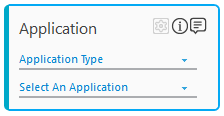
3. In the Application Type list, select CognitiveApps.
4. In the Select an Application list, select application.
5. Double-click the Application activity to add Language activity as cognitive activities works inside the application activity.
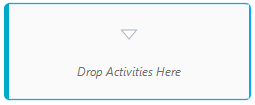
6. In the Canvas Tools pane, click Cognitive Services to expand the tool and view the associated activities.
7. Drag the Language activity and drop on to the Flowchart designer area on the canvas.
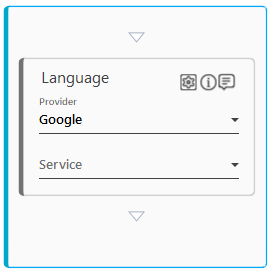
8. In the Provider list, select the provider name. By default, provider is set to Google.
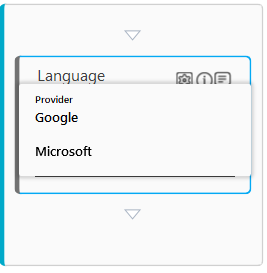
Automation Studio supports two service providers for cognitive language API.
9. In the Service list, select the service which you want to use for cognitive language API.
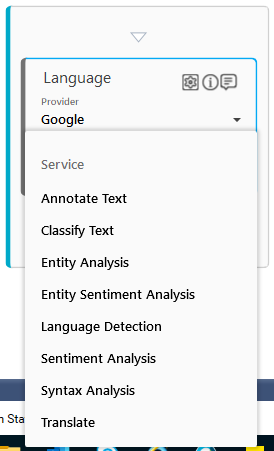
Based on your selection of provider, service list reflects the supported APIs. If you have selected Google as your provider, following API services will reflect in the service list:
· Annotate Text: It is a machine learning capability in which machine learns from previous annotated text and read new input and provide the output with annotated text. In this API, you can get all syntax, sentiment, entity, and classification features in one call.
· Classify Text: This API is used to classify the text and assign it to the predefined classified categories.
· Entity Analysis: This API is used to find entities, such as, common nouns, proper nouns, in the text and return information about identified entities.
· Entity Sentiment Analysis: This API is used to find entities in the text, like entity analysis. Additionally, analyzes sentiments associated with the entity.
· Language Detection: This API is used to detect the language of the given text.
· Sentiment Analysis: This API is used to analyzes the sentiment of the text, such as, positive feedback, negative feedback.
· Syntax Analysis: This API is used to detect the syntax in the text by breaking text into a series of sentences and tokens.
· Translate: This API is used to translate the text into the desired language.
If you have selected Microsoft as your provider, following API services will reflect in the service list:
· Entity Analysis: This API is used to find entities, such as, common nouns, proper nouns, in the text and return information about identified entities.
· Key Phrases: This API is used to detect the key words in the text.
· Language Detection: This API is used to detect the language of the given text.
· Sentiment Analysis: This API is used to analyzes the sentiment of the text, such as, positive feedback, negative feedback.
· Translate: This API is used to translate the text into the desired language.
10. Click
the  (Settings) icon. The Configuration
window appears.
(Settings) icon. The Configuration
window appears.
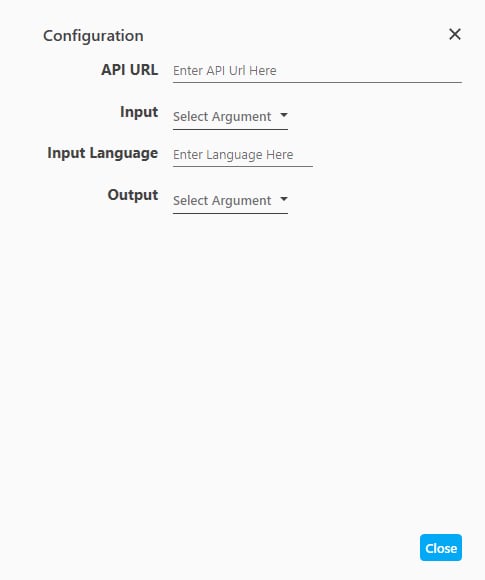
a. API URL: Provide API URL based on the provider and service selected by you in the Vision activity.
b. Input: This is an input for your API. You can provide file path by creating argument in the argument section and then select the created argument in the Input list.
c. Output: Provide the JSON file to store the output. This is an output of your API. You can provide the JSON file for output by creating argument in the Argument pane and then select the created argument in the Output list.
d. Input Language: This is an optional parameter; you can keep it blank for auto detect. You can define text in following format, such as, en-US. en depicts English and US depicts United States. As a whole API detects US English. Appears if Service selected is Entity Analysis, Key Phrases, Sentiment Analysis, Annotate Text, Classify Text, Entity Sentiment Analysis, and Syntax Analysis.
e. Target Language: Specify the target language in which you want the translate the provided text. Appears if Service selected is Translate.
The above mentioned parameters may vary as per your selection.
11. Click Close to confirm your changes.
Language Properties
The properties of Language activity are listed in the following table and can be edited in the Properties grid on the right pane.
Property Name |
Usage |
Control Execution |
|
Ignore Error |
When this option is set to Yes, the application ignores any error while executing the activity. If set to NA, it bypasses the exception (if any) to let the automation flow continue; however, it marks the automation status as failure, in case of an exception. By default, this option is set to No. |
Delay |
|
Wait After (ms) |
Specify the time delay that must occur after the activity is executed. The value must be in milliseconds. |
Wait Before (ms) |
Specify the time delay that must occur before the activity is executed. The value must be in milliseconds. |
Misc |
|
ApplicationID |
It is internally created and managed by Automation Studio itself. |
Breakpoint |
Select this option to mark this activity as the pause point while debugging the process. At this point, the process freezes during execution allowing you to examine if the process is functioning as expected. In large or complex processes, breakpoints help in identifying the error, if any. |
Commented |
Select this option to mark this activity as inactive in the entire process. When an activity is commented, it is ignored during the process execution. |
DisplayName |
The display name of the activity in the flowchart designer area. By default, the name is set as Language. You can change the name as required. |
InputLanguage |
Specify the text language in this field. The format to define the text language is en-US. Alternatively, you can enter the text language in the Input Language field of the Configuration window. The text language entered in the Properties grid reflects in the Configuration window and vice versa. |
InputText |
Specify the file path for the input. Alternatively, you can specify the file path by selecting the argument holding file path, in the Input list of the Configuration window. The file path specified in the Properties grid reflects in the Configuration window and vice versa. |
ResultJson |
Specify the JSON file path to store the JSON output. Alternatively, you can specify the JSON file path by selecting the argument holding file path, in the Output list of the Configuration window. The file path specified in the Properties grid reflects in the Configuration window and vice versa. |
SelectedService |
The name of the service selected in the language activity box. You can change the name as required. |
Url |
Specify the API URL in the field. Alternatively, you can specify the API URL by selecting the argument holding the API URL, in the API URL list of the Configuration window. The API URL specified in the Properties grid reflects in the Configuration window and vice versa. |
See Also
Languages supported:
· Google Natural language API: https://cloud.google.com/natural-language/docs/languages
· Google Language Detection & Translation API: https://cloud.google.com/translate/docs/languages
· Microsoft Text Analytics API: https://docs.microsoft.com/en-us/azure/cognitive-services/text-analytics/language-support
· Microsoft Translation API: https://docs.microsoft.com/en-in/azure/cognitive-services/translator/language-support
For more information:
Google:
https://cloud.google.com/natural-language/docs/reference/rest/v1/documents/analyzeEntities
https://cloud.google.com/natural-language/docs/reference/rest/v1/documents/analyzeEntitySentiment
https://cloud.google.com/natural-language/docs/reference/rest/v1/documents/analyzeSyntax
https://cloud.google.com/natural-language/docs/reference/rest/v1/documents/annotateText
https://cloud.google.com/natural-language/docs/reference/rest/v1/documents/classifyText
https://cloud.google.com/translate/docs/reference/detect
https://cloud.google.com/translate/docs/reference/translate
Microsoft:
https://docs.microsoft.com/en-us/azure/cognitive-services/Translator/reference/v3-0-reference
On This Page Hide
Related Topics