Control Tower
AssistEdge Control Tower provides automated provisioning, governance, and actionable analytics. Control Tower is a web-based monitoring system to set-up and manage the robots running on remote machines.
Following are the key areas within the Control Tower:
- Enables the <Super_Admin> user role to create, deploy, execute, and manage robots running on different machines
- Enables real time status tracking of all the robots running, connected, successful and failed at a time
- Enables real time tracking of transactions for a process
- Enables you to provide specific triggers to execute automations
- Enables you to manage credentials manager
- Access APM Dashboards
- Update Robots and Robot Agent
- Enables access to automation configuration statistics
- Access to change the Robots, Proctor, and Agent setup options
Configuration Settings
To start using Control Tower, users must first perform certain configuration settings, such as:
- Upload the required license to start with Control Tower. For more information about license management, see License Manager.
- Assign the user with Page Access in order to access Control Tower. This access ensures that the particular user has access to the required page only. For more information about how to assign access to user, see Page access.
- Assign the role access and mapping. For more information about role access and mapping, see Specify Role Access.
Role Access Mapping
Before proceeding with the Control Tower, user should be assigned the required role access to work seamlessly.
User should be provided with required role access in the Admin Module. For more information about Specify Role Access see Manage users.
To do role access mapping:
- Click Configuration > Manage Role > Specify Role Access.
- In the Select Role list, select the role.
- From the Select Access, select the check box corresponding to access which you want to assign to role.
- Click Save to save the changes made to role and access else, click on the
 (Close) to discard the changes.
Following table contains the available access and its capabilities.
|
Access |
Capabilities |
|
Control Tower Admin |
|
|
Super User |
|
|
Robot Creator |
|
|
Manager |
|
|
Control Tower User |
|
|
Robot Owner |
|
|
Transaction Analyst |
Access the Process view in Control Tower as per the access assigned and can take actions accordingly. Currently, user with Robot Creator, Super User, Robot Owner, or Manager access can access the transaction analyst. Super User can access or perform following actions:
Manager can access or perform following actions:
Robot Owner can access or perform following actions:
|
|
Control Tower Tabs |
|
|
View Only |
Allows Robot Creator or Super User with read only or view only access to view the Control Tower. User with Robot Creator, Super User, or Manager access can view the Control Tower. |
|
Credential Management |
Allows you to access the credentials manager in the Control Tower. User with Robot Creator, Super User, Manager or Robot Owner access can view or access the Credential Management. |
|
Trigger Management |
Allows you to access the Trigger Manager section in the Control Tower. User with Robot Creator, Super User, Manager or Robot Owner access can view or access the Trigger Management. Super User can access and perform following actions:
Robot Owner can access and perform following actions:
Manager can access and perform following actions:
|
|
APM Dashboard |
|
|
Runtime Configuration |
|
|
Automation Configuration Statistics |
|
Default Role Access Mappings
Following is the list of default role access mapping. You can change the role access mapping as per your requirement.
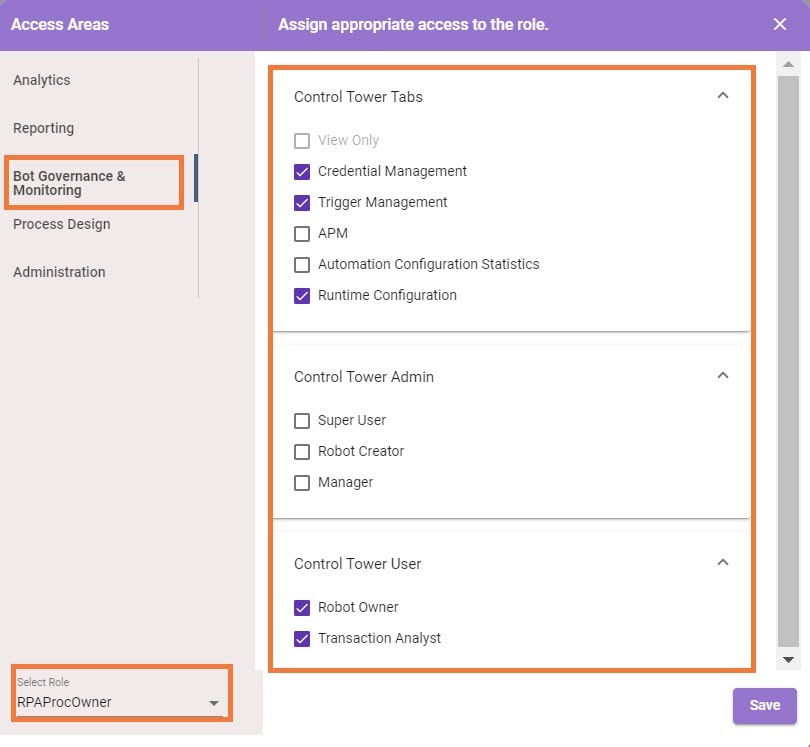
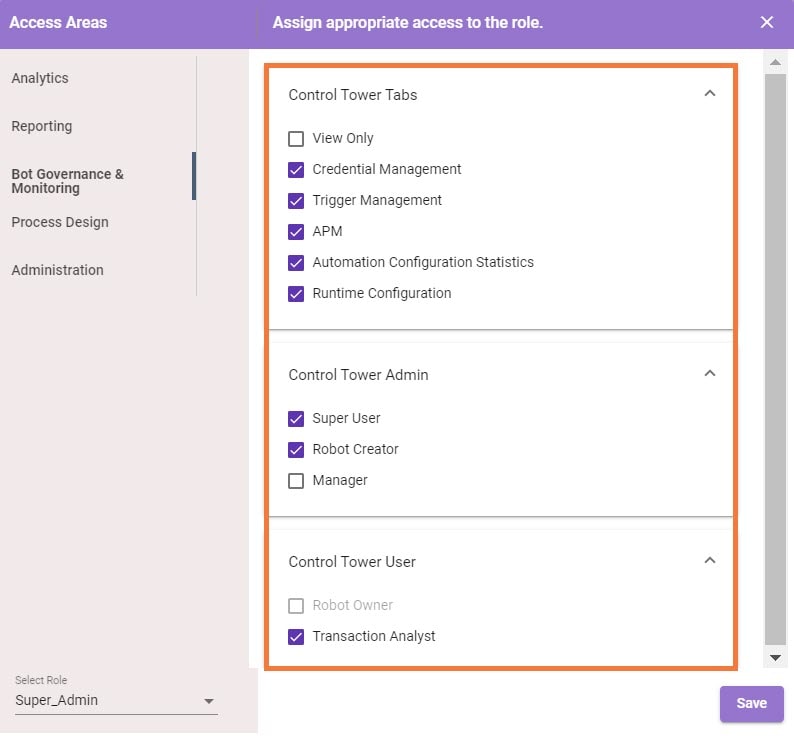
- Super_Admin role is by default, mapped to the Robot Creator, Super User, Credential Management, Transactions Analyst, Trigger Management, Automation Configuration Statistics and APM Dashboard accesses.
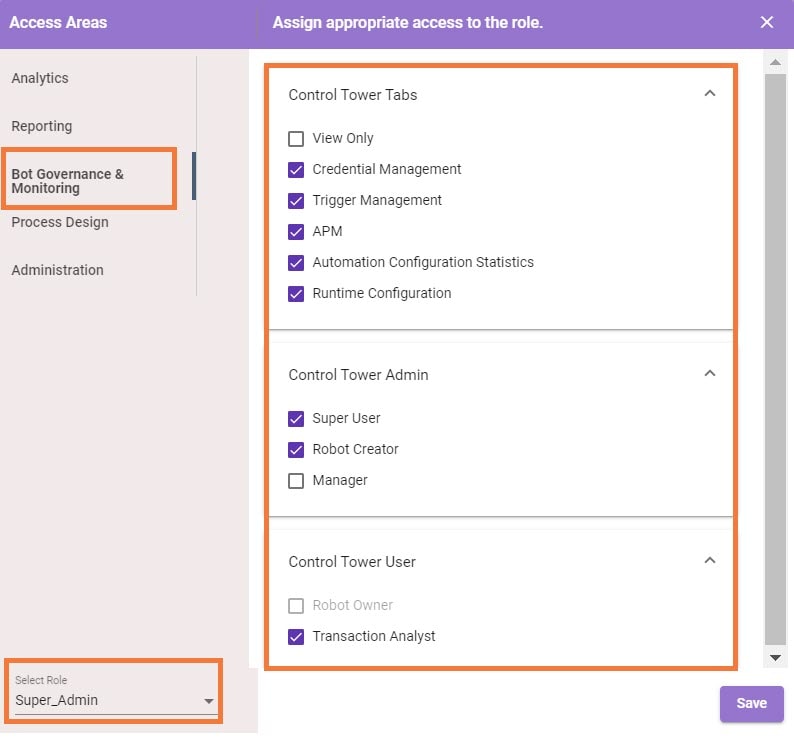
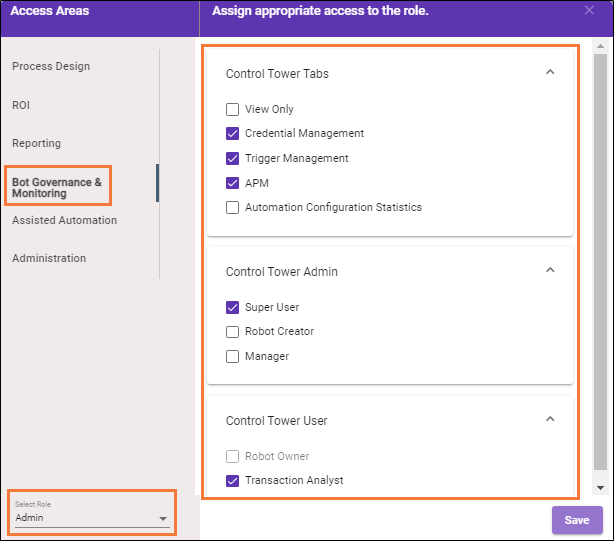
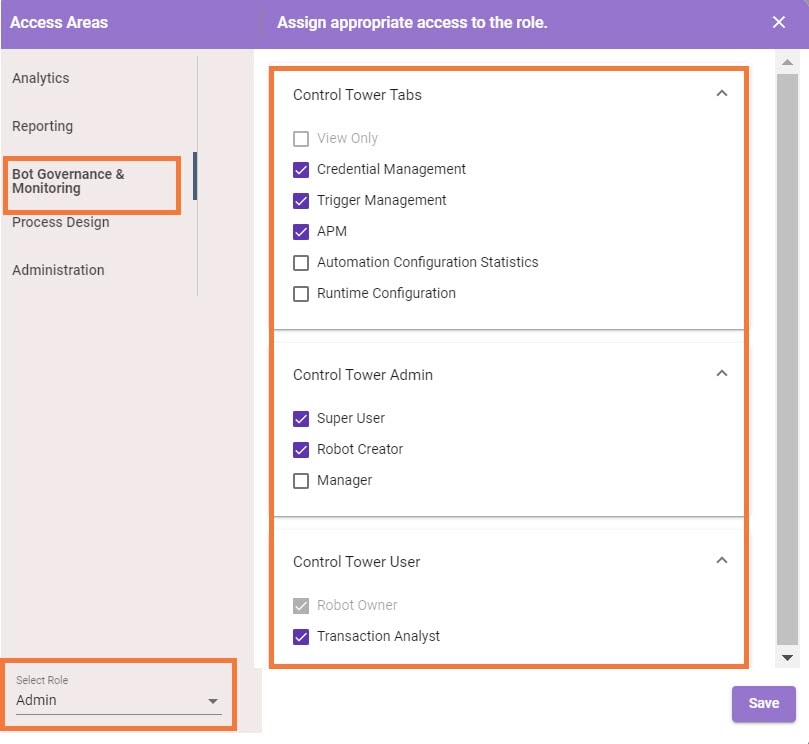
- Admin role is by default mapped to the Super User, Transaction Analyst, Credential Management, Trigger Management and APM.
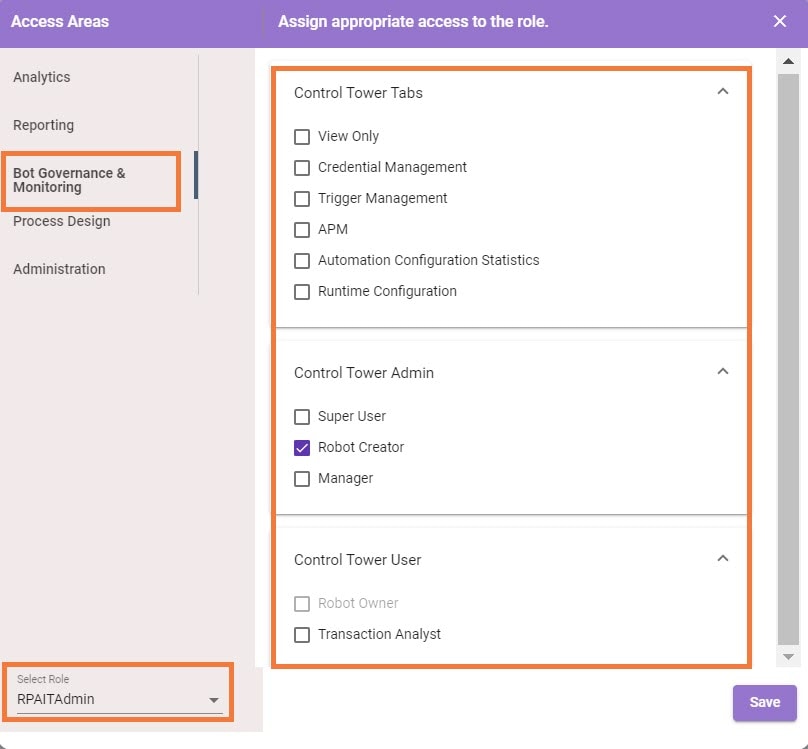
- RPAITAdmin role is by default mapped to the Robot Creator access.
- RPAProcOwner is by default mapped to the Manager, Credential Management, Transactions Analyst, and Trigger Management accesses.