Studio
The Studio tab allows you to edit the default configuration settings for all the studio instances running.
You can select, filter, or search for settings and keys for all the modules listed. However these operations are not supported for the Vanguard Alert Configuration.
- Click Select dropdown to choose the section to be viewed.
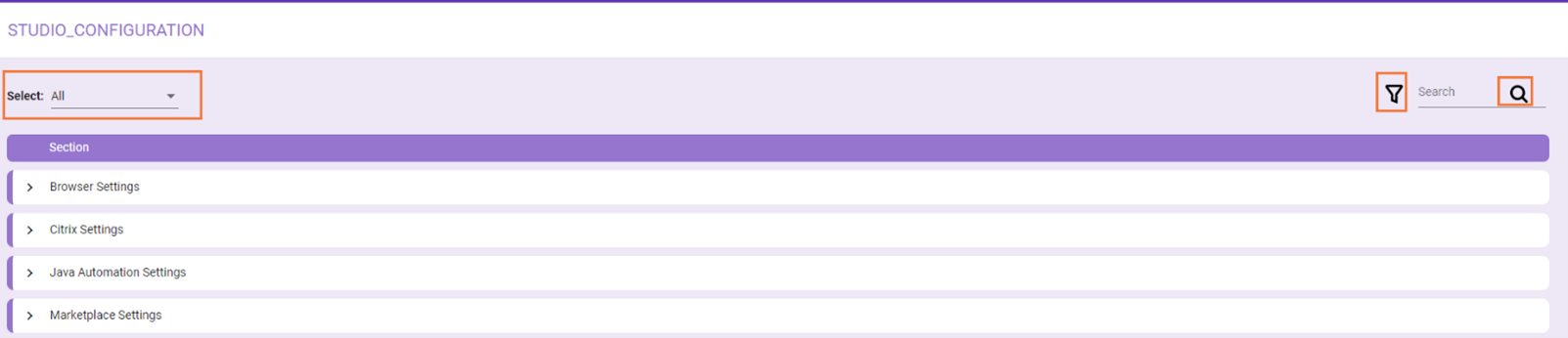
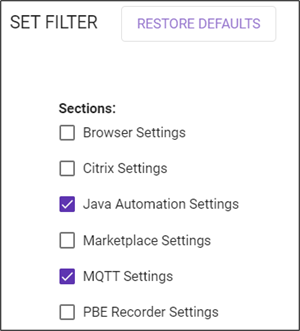
- Click on
 to filter based on the section.
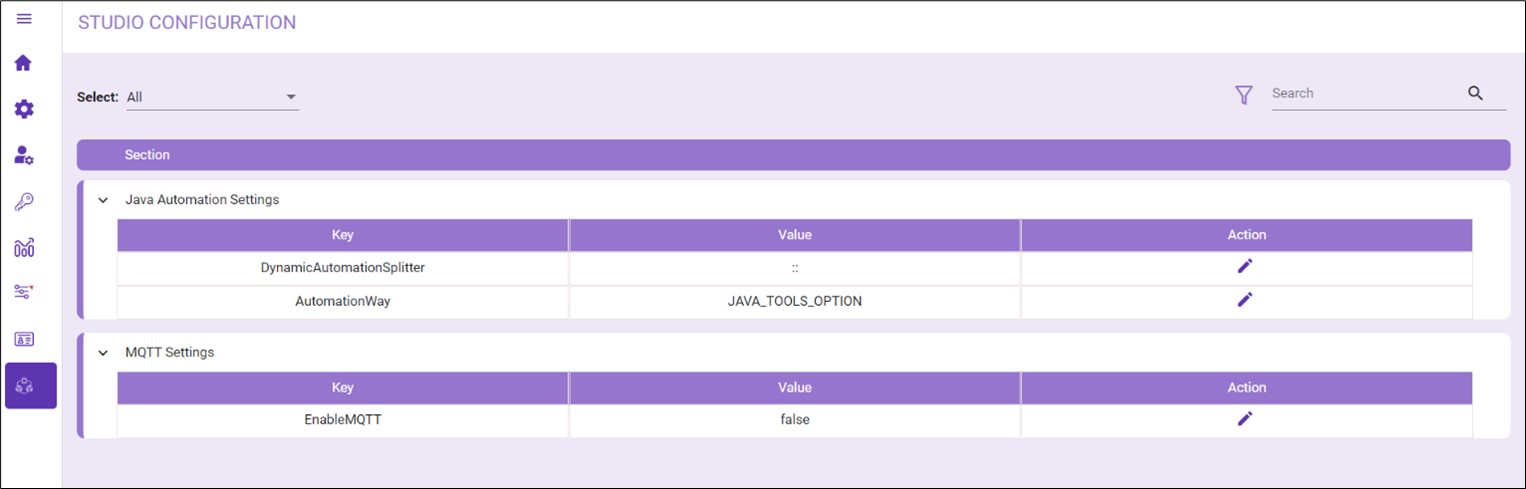
- Click on
 to search based on the Key present across the settings under the sections. The search function displays the Key with the search word under all the settings.
NOTE:
The updated configuration setting is applied when you restart the Studio.
To modify the Studio Configuration Settings:
-
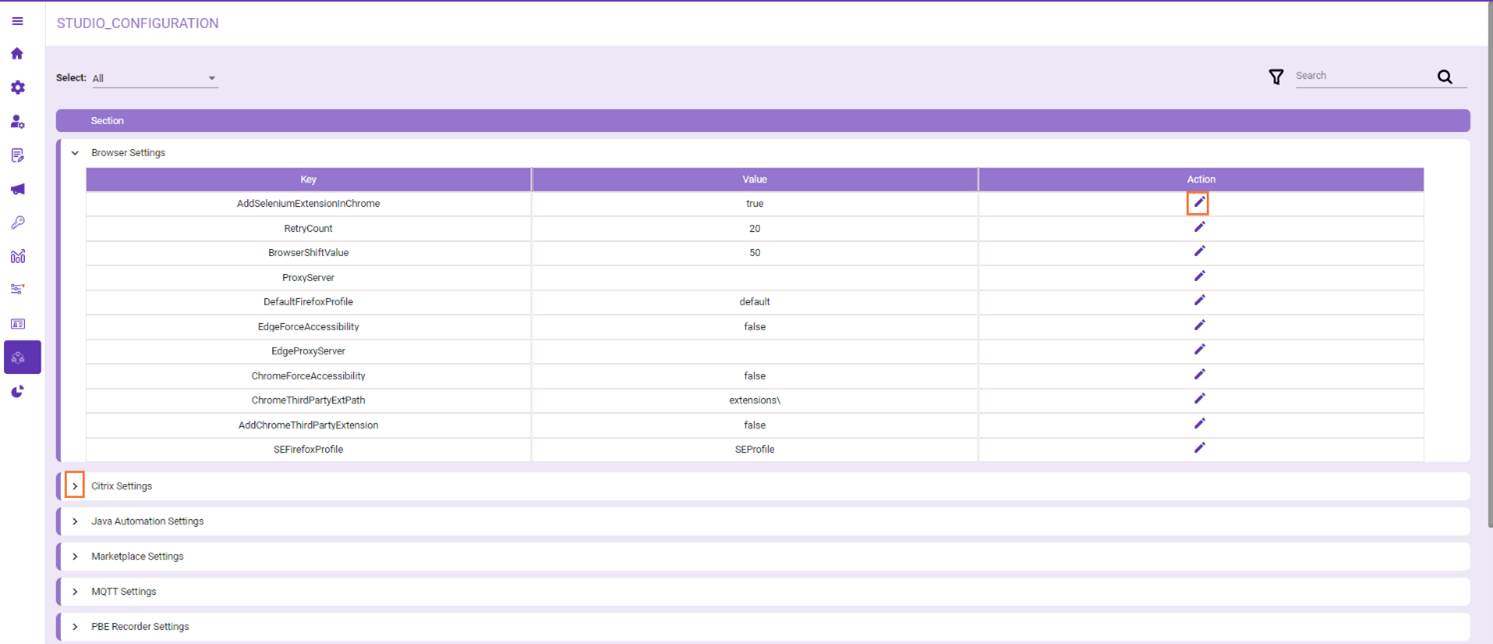
Go to Module Configuration > Studio. The Studio Configuration page is displayed.
-
Click the > to expand the required section. The associated Key and Value fields are displayed. The table below lists the Key description for each settings.
-
Click the
 edit icon of the Key whose value you want to modify.
Key Description Browser Settings AddSeleniumExtensionInChrome Allows you to inject the selenium extension in the chrome browser. Possible values are:
- True
- False
SEFirefoxProfile Firefox profile name that is used by SE to launch all Firefox applications. For example, SE Firefox. AddChromeThirdPartyExtension Allows you to specify if you want to allow third party extension path for Chrome.
Possible values are:- True
- False
ChromeThirdPartyExtPath This value gets the Chrome third party extension path. ChromeForceAccessibility Allows you to specify if multi window session is allowed, in which more than one Google Chrome instance can be opened simultaneously.
Possible values are:- True
- False
EdgeProxyServer Enable you to specify the proxy server address to be used by the Edge driver to disable the Auto Detect LAN setting. You have to set the value to blank in case you want to allow Detect LAN settings for the Edge browser.
Possible values are:- Blank (do not pass any value)
- Edge Server
EdgeForceAccessibility Allows you to specify if multi window session is allowed, in which more than one Microsoft Edge can be opened simultaneously.
Possible values are:- True
- False
DefaultFirefoxProfile Enables you to specify the default name for the Firefox profile. For example, Default. ProxyServer Enables you to specify the proxy server address to be used by the chrome driver to disable the Auto Detect LAN setting. For example, Data Server. BrowserShiftValue Enables you to specify the browser upside value to shift the browser for either Chrome or Firefox. For example, 50. RetryCount Enables you to specify the maximum retry count value when a web element is not found. For example, 20. Java Automation Settings DynamicAutomationSplitter Allows you to specify the splitter used in Java Automation to split the search path. For example, ::. AutomationWay If a web application contains java components and field config do not work while screen scrapping automation way can be changed for the concerned application.
Possible values are:- Java_Options_Tools
- Java_Options
Marketplace Settings BotstoreAPI_Key Allows you to specify the API key to fetch the Bot data. BotstoreAPI_URL Allows you to specify the URL to fetch Bot data for Marketplace. For example,https://search.marketplace.assistedgeautomation.com/indexes/stu-skills/docs . MarketplaceURL Allows you to specify the URL to upload Bots to Marketplace. For example, https://marketplace.assistedgeautomation.com/ BotstoreAPI_Timeout Enables you specify the timespan to wait before the request times out in minutes. For example, 20. MQTT Settings EnableMQTT Allows you to enable or disable the MQTT as a messaging protocol for IOT applications.
Possible values are:- True
- False
PBE Recorder Settings PBEExePath Allows you to specify the recorder exe file path, if there is no path passed for automated recorder exe file path. For example, PbE\AutomationRecorder.exe. PBEPortNo Allows you to set the port number for the PBE process. PortFindAttemptsAndWait Allows you to specify the retry count to get the available port for starting socket server and client. For example, 10000. AddFirefoxExtension Enables you to allow the Firefox extension for the PBE process.
Possible values are:- True
- False
PBEChromeExtPath Allows you to specify the path for setting the Chrome extension path for the PBE process. PBEFirefoxExtPath Allows you to specify the path for setting the Firefox extension path for the PBE process. DockPBEWinApp Allows you to specify the key for docking of windows application for the PBE process.
Possible values are:- True
- False
AddChromeExtension Allows you to specify if you can add Chrome extension to the PBE process.
Possible values are:- True
- False
Prerequisites Settings PerformPrerequisiteCheck If the value is set to true, prerequisite checks for OS, Browser, and Plugins are performed.
Possible values are:- True
- False
ChromeBrowserVersion Allows you to specify the version of the Chrome that is used on the system. For example, 91.0.4472.101. EnablePrerequisiteReports You can specify if you want to enable data capturing for prerequisite reports.
Possible values are:- True
- False
ShowPreRequisiteAlerts If the value is set to true, this allows the alerts of the prerequisites to be shown.
Possible values are:- True
- False
Python Settings PythonScriptPath Allows you to define the path of Python home directory. In case the environment variable PYTHON_HOME is not set, the defined path is used for python activity execution. For example, C:python36. Studio Process Settings ExcelloopValuePre176Behaviour This value has to enabled for the processes before 17.6 and has an excel loop.
Possible values are:- True
- False
StudioResetTime Enables you to set the Automation Studio Rest interval per application in milliseconds, the value should always be greater than 1000ms. For example, 50000. AutoSaveInterval Allows you to specify the time interval in minutes to auto save a process. For example, 20. StudioSearchTime Enables you to set the Automation Studio process execution timeout value in milliseconds, the value should always be greater than 1000ms. For example, 50000. StudioSignInTime Enables you to set the Automation Studio sign-in interval per application in milliseconds, the value should always be greater than 1000ms. For example, 50000. ApplicationCautionTimer Enables you to specify the timer in milli seconds to display the caution message Dont close application to return to Studio, while launching applications for configuration. For example, 5000. EnableAutoSave Allows you to enable or disable the auto save feature in studio.
Possible values are:- True
- False
MultiDomain Allows you to enable test run of process in a new app domain.
Possible values are:- True
- False
EnableComplexityCoefficient Allows you to enable or disable the feature to define the process complexity at the time of deployment.
Possible values are:- True
- False
IcaClientPath The local path where the wfcrun32.exe exists. For example, C:\Program Files\Citrix\ICA Client\wfcrun32.exe Version Control System Settings SignMetadata Allows you to enable or disable the option to sign the metadata files during push to Version Control System.
Possible values are:- True
- False
CertificatePassword Allows you to specify the certificate password, this value is valid only if SignMetadata is set to true. PreserveWhiteSpaceInXmlDoc Allows you to specify to sign the metadata files with or without including the white spaces. This value is valid only when SignMetadata is set to true.
Possible values are:- True
- False
CertificateType Allows you to specify the certificate type based on the X509 key storage flags the recommended value to be added is Exportable. CertificatePath Allows you to specify the path that is used to sign the metadata files during push to Version Control System, this value is valid only if SignMetadata is set to true. Web Driver settings MicrosoftEdgeWithIECompatibility Allows you to choose multiple or single instance for a driver in Edge with IE compatibility.
Possible values are:- True
- False
Chrome Allows you to choose multiple or single instance for a driver in Google Chrome.
Possible values are:- True
- False
- Make the necessary changes and click
 Save to save the changes.