Application Signin
Application Signin credentials are inherited from the credential manager if Use Global Signin Application Credentials option is selected. The credentials are automatically picked from the Default vault.
To use different credentials specifically for the concerned robot, update the credentials in the Application Sign-in-stage. For more information about updating the credentials, see Credential Manager.
To start with the application signin:
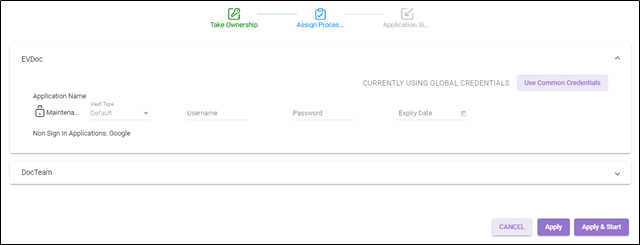
- In the Application Name, update the application credentials.
-
In the Vault Type, select the Default Vault option, then you must enter the authentication details depending on the application type configured in automation Studio.
-
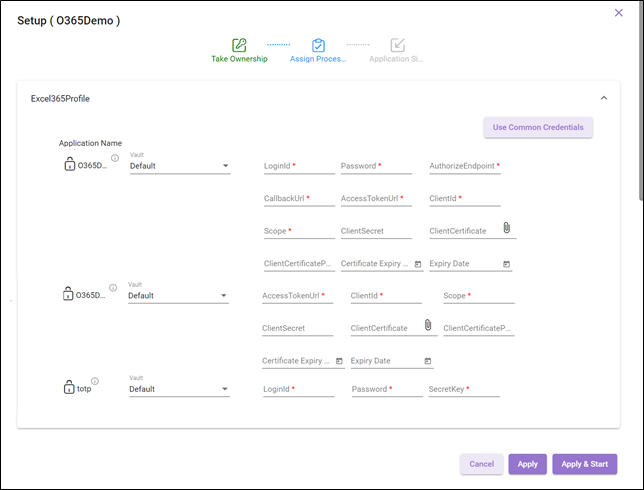
In the Sign in Applications fields, you are required to enter the values as per the application created in the Automation Studio. To start with Application Sign in process, create a Sign in Process in Automation Studio, for more information about Sign-in application, see Sign In Process.
Use Common Credentials enables you to store the credentials for multiple profiles at a time. For more information, see Common Credentials section.
NOTE:
The Modern Authentication credentials are not applied to non-Modern Authentication profiles and vice-versa.
-
-
In case, you click APPLY, then-
-
A message as Setup Robot <Robotname> appears on the page.
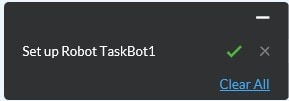
The newly created robot appears in the Total Robots and Stopped robots list view.
-
- In case, you want to start the robot immediately post applying the robot settings then, click APPLY & START.