Transactions View
Transactions View page displays the list of transactions for specific status. You can switch between various tabs to view the transactions statuses.
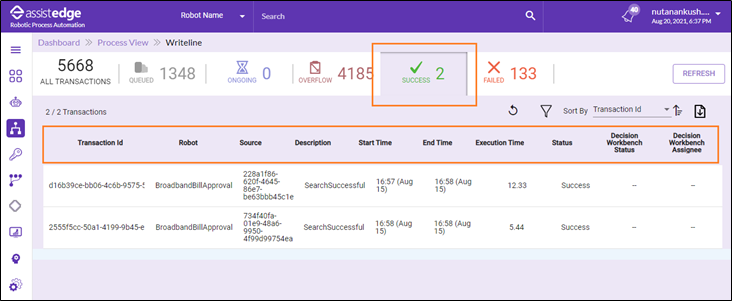
Following is the field description of each tab:
|
Status |
Description |
|
|
Indicates all the queued transactions waiting to be picked up by a robot. |
|
|
Indicates all the ongoing transaction of the robot which are currently being processed by the robots. |
|
|
Indicates all the overflow transactions which are not picked up by the robot because of a failed business validation or the transaction timed out before it was picked. |
|
|
Indicates all the success transactions of the robot which are executed successfully. |
|
|
Indicates all the failure requests picked by the robot for execution but could not execute successfully. |
|
All Transactions |
Indicates all the transactions details such as Queued, Ongoing and so on. |
|
|
Click Refresh to refresh the process view transactions list. |
 (Queued )
 (Ongoing)
 (Overflow)
 (Success)
 (Failure)
To view the transactions:
- Click the
 (Process View) > select any Transaction number. In the following page, Success Transaction number is selected.
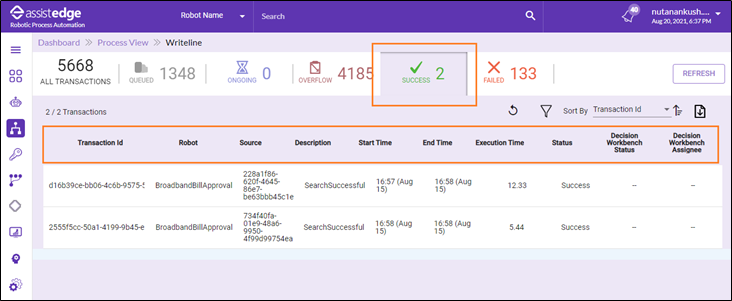
The process view <Success Transactions> page is displayed.
Following is field description of process view - transaction page.
|
Column Header |
Description |
|
Transaction ID |
Indicates the unique transaction ID of the transaction. |
|
Robot |
Indicates the name of robot which picked up the request for execution |
|
Source |
Indicates the source of the transaction.me. |
|
Description |
Indicates the brief description of how the transaction ended up. The text to be shown in this field for a specific error type is configured from App/RPA ControlTower/Public/JS/Config.js. |
|
Start Time |
Indicates the time stamp when the transactions processing was started by the RPA component. |
|
End Time |
Indicates the time stamp when the transactions processing was stopped by the RPA component. |
|
Execution Time |
Indicates the time taken by a robot to execute the transaction |
|
Decision Workbench Status |
For the transactions which have been marked for decisions by Process SMEs, this field indicate the status of the transaction in the Decision Workbench depending upon the action taken by the process SME. |
|
Decision Workbench Assignee |
For the transactions which have been marked for decisions by Process SMEs, this field indicate the name of the process SME who has worked on this transaction. |
- The process view - transaction list page enables you do following:

- Filter:
i. Click the  ( Filter) icon to filter the transactions list as per various criteria.
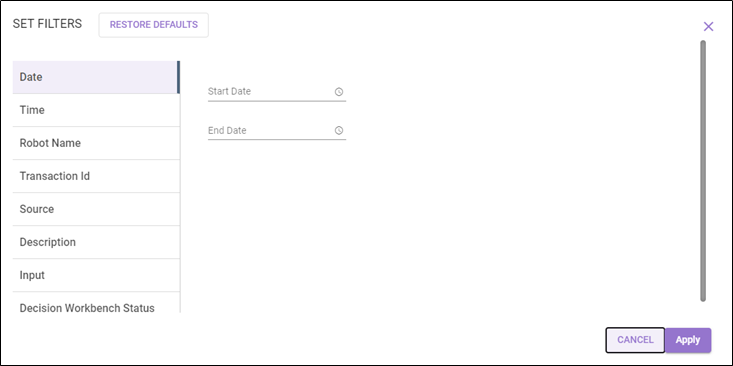
The SET FILTERS page is displayed.
ii. In the left panel, select the preferred filter parameter..
iii. In the right panel, specify the required details. Click Clear, if you want to change the details.
iv. Then, click APPLY to view the process view -transaction list as per the selected criteria.
v. The result is displayed on the page as per the selected parameter.
OR
vi. Click RESTORE DEFAULTS to reset the process filter parameter to default.
Following is the field description of filter:
|
Filter Name |
Description |
|
Date |
Specify the number of days for which you want to view the details. |
|
Time |
Specify the time duration for which you want to view the details. |
|
Robot Name |
Click Robot Name, and then select the <robotname> check box to get the name of robot which picked up the request for execution. |
|
Transaction ID |
Click Transaction ID, and then select the Fetch connected transaction check box to get a list of all the related (original and retried) transactions of the entered transaction ID. |
|
Source |
Click Source, specify the search transaction store to get the detail of transaction store. |
|
Input |
Displays the input for transaction ID. |
|
Description |
Click Description, and then select the type of description for which you want to get the details. |
|
Decision Workbench Status |
Click Decision Workbench Status, and then select the required option such as open, in progress, escalated and closed to view the status of the transaction in the Decision Workbench. |
b. Sort by: In the Sort by list, select the preferred option. Additionally, you can sort the available list as per the available sorting criteria such as:
- Time Stamp
- Robot Name
- Request Source
- Description
- Execution Time
For more information about the sorting criteria option, see Process view - Transaction list Column Field Descriptio.
c.  (Ascending) or
  (Descending) order: Click the or icon to arrange the process view transactions list in ascending or descending order.
d. Export as CSV: This option enables you to download the reports with current fields details or with all the fields of process view.
i. Click the  (Export as CSV) icon.
ii. Select the required option from the available list such as Current fields or All fields to download the report with all fields.
iii. According to selected criteria, Transactionslist <processname - TransactionID> <all fields>.xls is downloaded on your system.
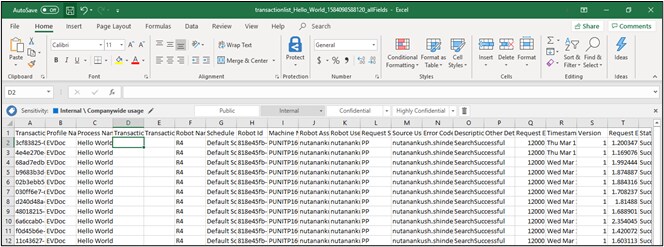
The above shown is a sample transactions report.xls.
3. Schedule a daily report of a particular process-profile combination to specific Ids from the apps/RPA-ControlTower/config/emailConfigs.txt file.
4. In the Process view - Transactions page, click Transaction ID, Robot, Source, and Description values to open the relevant transactions detailed information page.
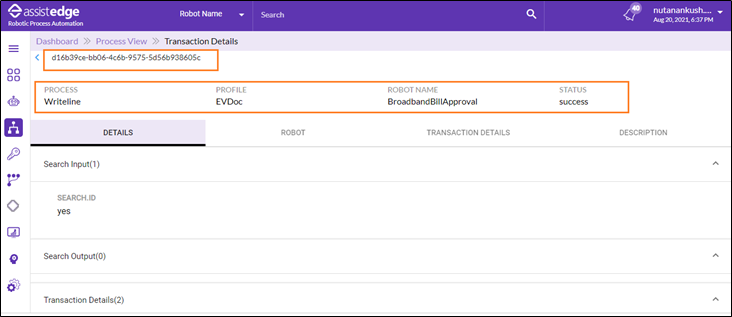
Then, the Process View - Transactions Details page is displayed.