Transaction Details
Transaction details page displays the information about the process transactions details such as process name, profile name, robot name and status. Additionally, you can download the list of process view transactions details.
The configuration setting of process outputs is managed through ISExtracted property of the specific argument while designing the process.
To view transaction details:
In the Process view >Transaction Details > click Transaction ID.
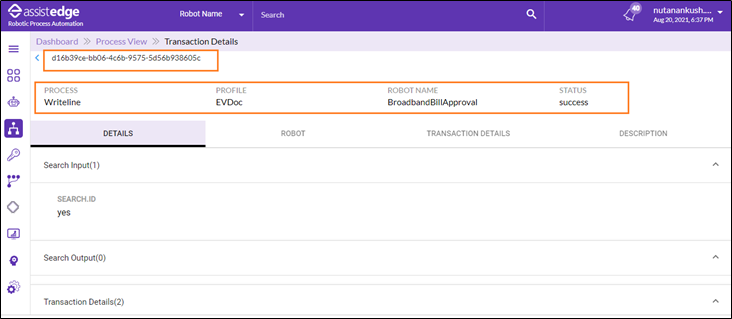
The Process View -Transaction Details page is displayed.
You can switch between the tabs. It shows process transaction details at the Top and Tabs such as:
Top
At the top, the process details are displayed, which includes Process, Profile, Robot Name, and Status. Following is the field description of top bar - process view transaction details page.
|
Column Header |
Description |
|
Process |
Displays the name of the process. |
|
Profile |
Displays the profile mapped to the process |
|
Robot Name |
Displays the name of robot to which the process is assigned |
|
Status |
Displays the status of processes that are being processed by the robots |
DETAILS Tab
The Details Tab, displays process view transaction details information as following.
- Search Inputs and Search Outputs: The details of the process inputs, outputs, and details of each step that was performed through the journey of this transaction is displayed.
- Search Input field will appear masked or anonymized based on the configuration performed in the Data Protection Activity in the Automation Studio. For more information, see about data protection activity section in the AE-RPA-Engage-Automation Studio User Manual.
- Search Output field displays the output parameters set in the Automation Studio. Additionally, you can enable only the preferred parameters to be shown in the Search output. For more information see, Process Input/Output section in the AE-RPA-Engage-Automation Studio User Manual
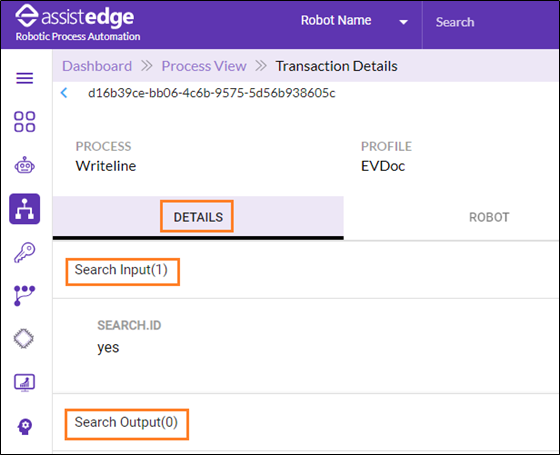
- If the argument is masked in Automation Studio then, by default it appears as masked for all roles except <Super_Admin> role.
- If the argument is anonymized then, it appears encrypted for all the roles.
- For more information about Data Protection Activity in Automation Studio, see Data Protection section in Automation Studio and about configuration or modification of data security, see Data Security section in Reporting.
|
NOTE: |
In case process input argument does not match with data masking pattern criteria, then the default masking pattern is applied to process input argument. For more details about fall back mechanism, see Data Protection FallBack Mechanism section under Infrastructure Health Monitoring in the Administrator. |
- Transaction Details: The process view transaction details display transactions logs such as Message, Description, Entity Name, Step Status, and Time.
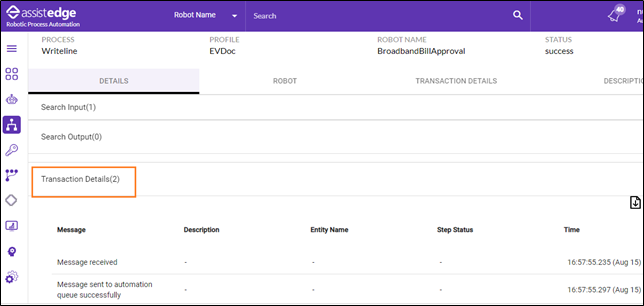
ROBOT Tab
Click Robot tab to view the robot transaction details for the corresponding transaction. The Robot tab displays information such as Robot Name, Machine Name, Robot Assignee and Username.
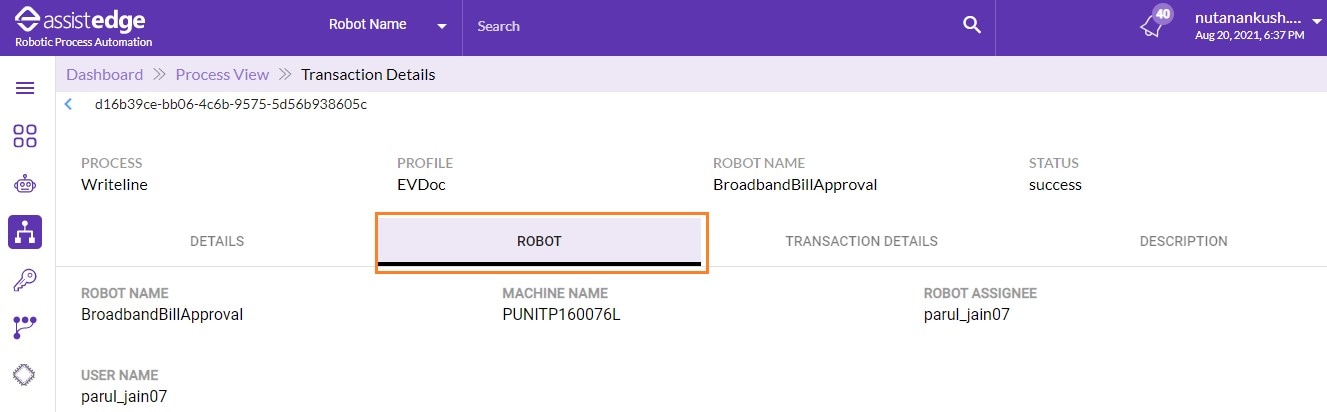
Following is the field description of robot tab transaction details page.
|
Column Header |
Description |
|
<Robot Name> |
Displays the name of the robot. |
|
Machine Name |
Displays the machine on which the robot is deployed. |
|
Assigned To |
Displays the name of user to whom robot is assigned. |
|
Username |
Displays the authenticated User Id for the robot. |
TRANSACTIONS DETAILS tab
Click Transactions Details Tab to view the transaction details for the corresponding transaction. This tab displays transactions details such as Source User ID, Cross reference ID, Request expired, Retry flag, Total retry count, and so on.
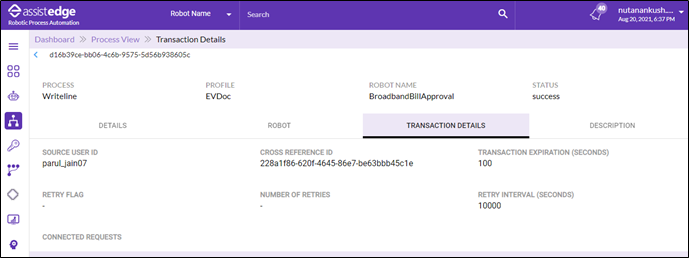
Following is the field description of transaction details tab:
|
Column Header |
Description |
|
Source User ID |
Displays the source user ID of the transaction. |
|
Cross Reference ID |
Displays the transaction indicates the source component of the request. |
|
Transaction Expiration (Seconds) |
Displays the time for which the request is valid in the system. |
|
Retry Flag |
Displays the Retry related details such as Retry Flag indicating whether retry is configured for the transaction or not. |
|
Number of Retries |
Displays the number of times for which the request is retried in case the execution attempt is not successful. |
|
Retry Interval (Seconds) |
Displays the interval after which the request is retried. |
|
Connected Requests |
Displays the related (original and retried) requests for the particular request. Also, displays the specific request to view the input, output and step details of the corresponding request. |
Click Connected Requests to view the related (original and retried) requests for this request. Click on a specific request to view the input, output and step details of the corresponding request.
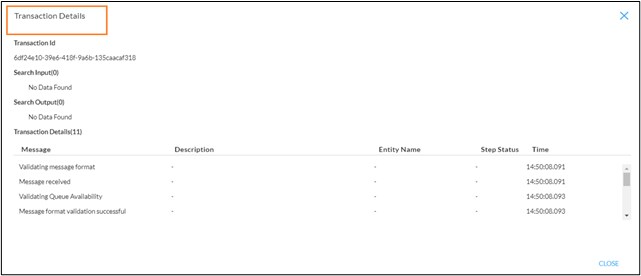
The transaction details page is displayed which provides information about the transaction ID, inputs, outputs, and transaction log details. Then, click CLOSE to go back to Transaction Details Tab.
DESCRIPTION tab
Click Description Tab to view the transaction details error. This tab displays following transaction details:
- Error code.
- Description.
- Error Type.
- Retry Valid: Information regarding whether a retry is valid for the corresponding transaction or not.
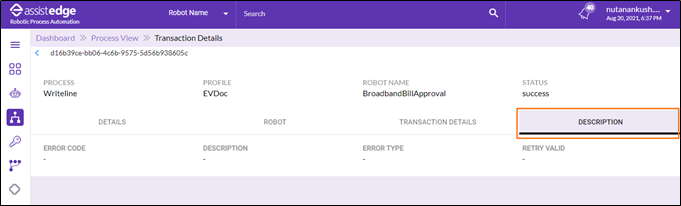
Even if the retry flag value is set to true, the request is not retried, if the value of the retried valid flag is false. The value is false for the requests which are bound to fail even if these are retried.