Providing Process Details to calculate Robots Needed
To provide process details to calculate required number of robots:
- Navigate to Admin Module > Control Tower.
- Click the
 (Autoscaling) icon and select SCALE PLAN.
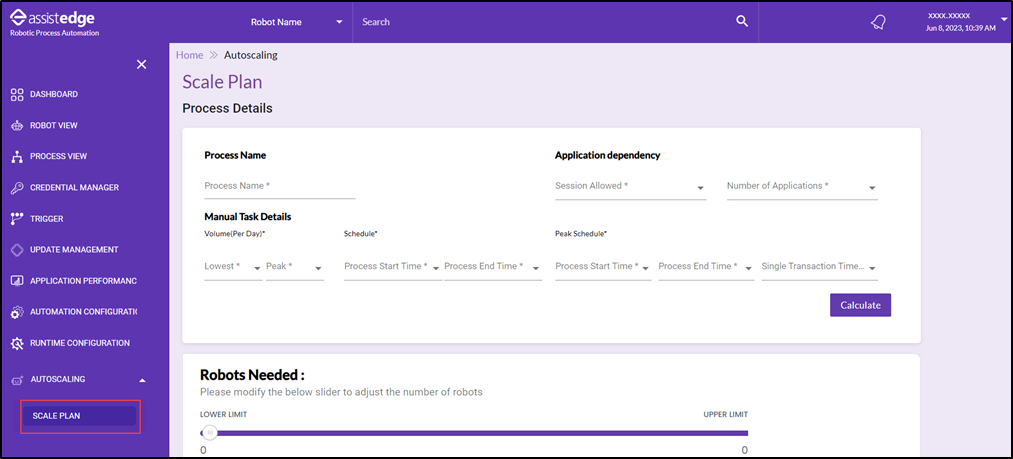
The Autoscaling – Plan page appears.
NOTE:
For calculating the number of Robots Needed, you must provide the required details in the Process Details section.
- Provide Process Name in the Process Details section. This process name need not be existing process name.
- In the Application Dependency section select the values for:
- Sessions Allowed- It signifies the expected number of sessions created in the Robot Farm Machine where the processes execute. The available options are -
- Multiple – Select Multiple for multiple users’ session
- Single – Select Single for single-user session
- Number of Applications – It signifies the number of applications within the process. Select from available values 1,2,3 and 4+.
- Sessions Allowed- It signifies the expected number of sessions created in the Robot Farm Machine where the processes execute. The available options are -
- In the Manual Task Details section select the values for:
- Volume (Per Day)
- Lowest – It signifies the expected volume of transactions in the ideal situations i.e. when the process execution is not triggered frequently. Select from available values ranging from 1 – 1000. These values are with a step increment of 10.
- Peak – It signifies the expected volume of transactions during peak load i.e., when the process execution is triggered frequently. Select available values ranging from 1 – 100000. These values are with a step increment of 500.
- Schedule
- Process Start Time – It signifies the expected start time for process execution. Select from available time ranging from 00:00 – 23:30. These values are with a step increment of 30 minutes.
- Process End Time – It signifies the expected end time for process execution. Select from available time ranging from 00:00 – 23:30. These values are with a step increment of 30 minutes.
- Peak Schedule
- Process Start Time - It signifies the expected peak start time for process execution. Select from available time which ranges based on the selected time for scheduled Process Start Time and Process End Time.
For example, if scheduled Process Start Time is 14:00 and scheduled Process End Time is 16:00, then the available values for peak Process Start Time are populated between 14:00 – 16:00. In case, the scheduled Process Start Time is 14:00 and Process End Time is 14:30, then the available value for peak Process Start Time is 14:00 only. - Process End Time – It signifies the expected peak end time for process execution. Select available time which ranges based on the selected process start time for peak and process end time for schedule.
For example, if the peak Process Start Time is 14:00 and scheduled Process End Time is 16:00, then the available values for peak Process End Time is between 14:30 – 16:00. In case, the peak Process Start Time is 14:00 and scheduled Process End Time is 14:30, then the available value for peak Process End Time is 14:30 only. - Single Transaction Time(min) – It signifies the expected time (in minutes) taken by the process to execute once. Select available time ranging from 1-50. These values are with a step increment of 1 minute.
- Process Start Time - It signifies the expected peak start time for process execution. Select from available time which ranges based on the selected time for scheduled Process Start Time and Process End Time.
- Volume (Per Day)
- Click Calculate. The number of robots required, are calculated based on the above-mentioned manual task details, and populated in the Robot Needed section.
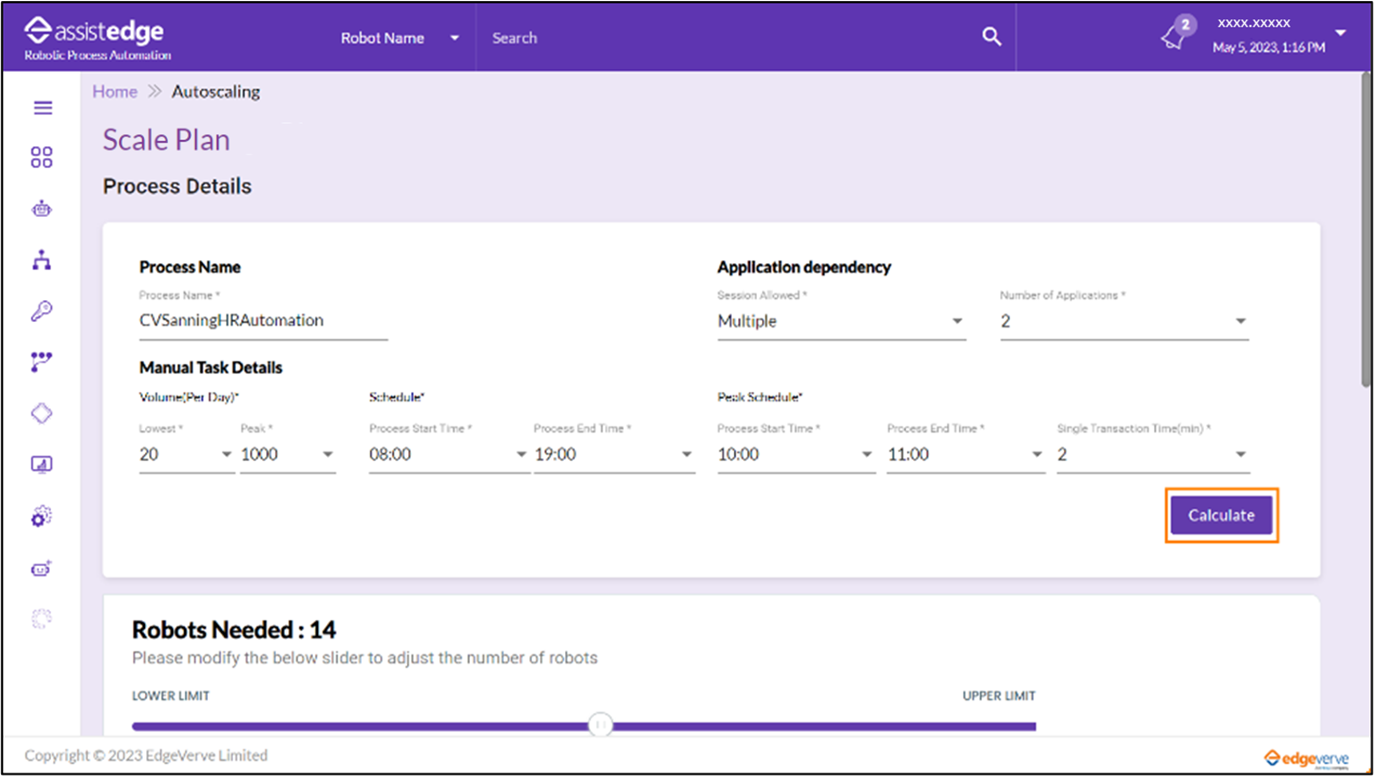
- Modify the Robots Needed, if required. You can adjust the number of Robots required, between the calculated LOWER LIMIT and UPPER LIMIT, by using the slider.

After the required number of robots are calculated, the process is ready to be added to a plan.