Step-By-Step Guide to use Sharepoint 365 Activity to Upload an Excel file at a Desired Location
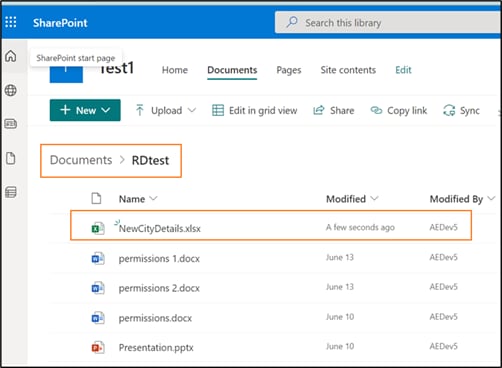
Let’s see an example to upload an Excel file CityDetails.xlsx from the local machine to an existing folder, RDtest available at the root directory of the SharePoint site. Additionally, we are going to rename the uploaded file to NewCityDetails.xlsx.

Prerequisites:
- Register the required SharePoint 365 application in Azure Active Directory.
- Configure the Office 365 application in Automation Studio. You must add the Microsoft Service URL with an option to create a sign-in process. This lets you establish a connection between Office 365 application and Automation Studio to automatically sign in and perform the automation. Here we have configured Office 365 with the name, SharePoint.

- Access token to authorize and login to Outlook 365 application. The access token can be fetched using the Oauth activity. Here, we have fetched the access token into an Out argument, Token.
To automate the process of uploading the :
- Continue with the same automation process workflow where you have used Oauth activity to fetch the access token.
Or
Create a new process and use the Reuse Process activity to use the existing Oauth process workflow. Ensure that the Oauth process is published if you want to reuse the workflow.
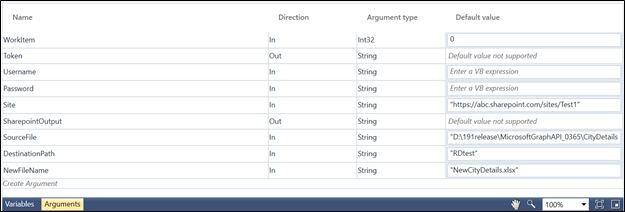
Here we have continued with the Oauth process workflow itself. - Create the following arguments:
- Site- an In argument to save and pass the SharePoint 365 site URL where you want to upload the file.
- SourceFile- an In argument to pass the Excel file name along with its path that you want to upload to the SharePoint site.
- DestinationPath- an In argument to pass the location where you want to upload the Excel file.
- NewFileName- an In argument to pass the file name along with the file extension to rename the Excel file.
- SharepointOutput- an Out argument to store the result of the Upload File feature.
|
NOTE: |
In the Oauth activity, ensure to set the Scope to file.ReadWrite.All permission to enable Automation Studio with the required permission to use SharePoint 365 application. |
- From the Canvas Tools panel, add Application activity to the Flowchart designer.
- In the Application Type list, select Office365.
- In the Select an Application list, select the configured Office 365 application, SharePoint.

- Drag the SharePoint 365 activity and drop inside the Office365 Application block.

- In the Access Token list, select Token argument.
- In the Site Url list, select Site.
- In the Feature list, select Upload File.
- Click the
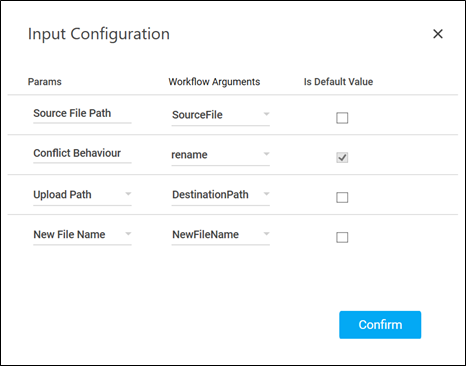
 (Setting) icon to configure the input configuration. The Input Configuration screen appears.
 - Define the mandatory options:
- Corresponding to the Source File Path parameter, select SourceFile argument in the Workflow Arguments list to pass the required file for upload.
- Corresponding to the Conflict Behaviour parameter, select fail or rename as per your requirement. Here, we have selected rename to rename the required file at the time of uploading it to the SharePoint site.
- Define the advanced options:
- Click Advanced Options and select Upload Path.
- Corresponding to the Upload Path parameter, select DestinationPath argument in the Workflow Arguments list to pass the required location for file upload.
- Click Advanced Options and select New File Name.
- Corresponding to the New File Name parameter, select NewFileName argument in the Workflow Arguments list to pass the new file name with which you want to rename the file to be uploaded.
- Click Confirm.
- Click the
- In the Output list, select SharePointOutput to store the result of the Upload File operation.
To view the Upload File result in Automation Studio, you can add WriteLine activity. It prints the result in the Studio Console Output tab after you test run the process.

You can assign this process to a robot if you want to execute this process outside Automation Studio.
- Save the process.
- Setup the environment and enter the required login details.
- Perform test run.
Below are the sample screen shots of the successful automation workflow:
Sample Studio Console Output console and the SharePoint 365 application after the file upload is successfully done: