Step-by-Step Guide to Use DoWhile to Make a Loop in Automation Process
Let's create an example to automate the process till the condition is true. Once the condition is false, the loop ends.
- Create a process.
- In the Parameter bar, create an variable, A of Variable type - Int32 and set the Default field as 10.

- From the Canvas Tools panel, add the While activity to the Flowchart designer on the Canvas.
- In the Enter Expression here field, enter (A<20).
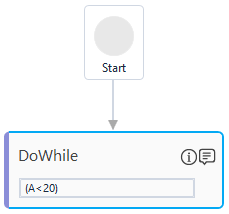
- Double click the DoWhile activity box.
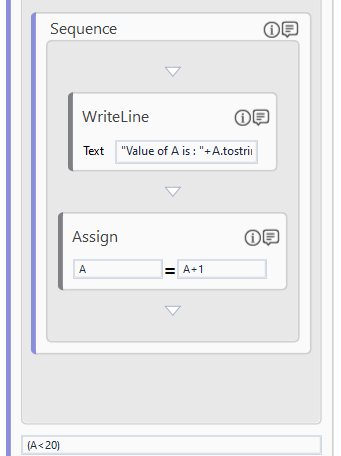
- In the Drop activity here section, add the WriteLine activity to the Flowchart designer on the Canvas from the Canvas Tools panel.
- In the Text field, enter "Value of A is : "+A.tostring.
- From the Canvas Tools panel, add the Assign activity to the Flowchart designer on the Canvas.
- In the To field, enter A.
- In the Enter an Expression field, enter A+1.
- Save the process.
- Setup the environment and then perform test run.
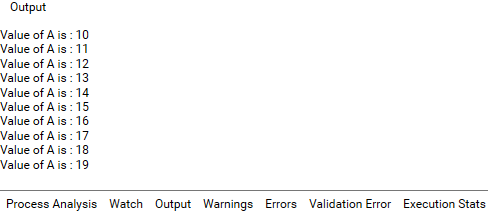
The console display the output till the value of A is lesser than 20 in ascending order.