Application Signin
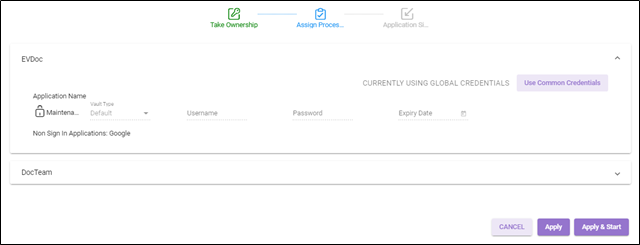
Application Signin credentials are inherited from the credential manager if Use Global Signin Application Credentials option is selected. The credentials are automatically picked from the concerned credential vault mainly, Default, CyberArk, or BeyondTrust.
To use different credentials specifically for the concerned robot, update the credentials in the Application Sign-in-stage. For more information about updating the credentials, see Credential Manager.
To start with the application signin:
- In the Application Name, update the application credentials.
-
In the Vault Type, select the preferred option.
-
Default: If you select Default Vault option, then you must enter the username and password.
-
CyberArk: If you select CyberArk option, then you must enter the details such as App ID, Safe, Folder and so on.
For more information about the CyberArk, see CyberArk section in the Credential Manager. -
BeyondTrust - Managed Account: If you select BeyondTrust - Managed Account option, you must enter the details such as SystemName and AccountName.
-
BeyondTrust - Team Passwords: If you select BeyondTrust - Team Passwords option, you must enter the details such as FolderName and CredentialTitle.
For more information about the BeyondTrust – Managed Account or BeyondTrust – Team Passwords options, see BeyondTrust – Managed Account or BeyondTrust – Team Passwords section in the Credential Manager.
-
-
In the Sign in Applications fields, you are required to enter the values as per the application created in the Automation Studio. To start with Application Sign in process, create a Sign in Process in Automation Studio, for more information about Sign-in application, see AE-RPA-Engage-Automation Studio UserManual. Control Tower now also supports Oauth activity which includes Sign in using Authorization Code, Authorization Code with PKCE, Client Credentials, Implicit Grant, and Resource owned Password Protected, TOTP and Auth Manager For more information about OAuth Activity, see AE-RPA-Engage-Automation Studio User Manual.
NOTE:
Common Credentials option is not applicable for Application Sign in using OAuth Activity.
-
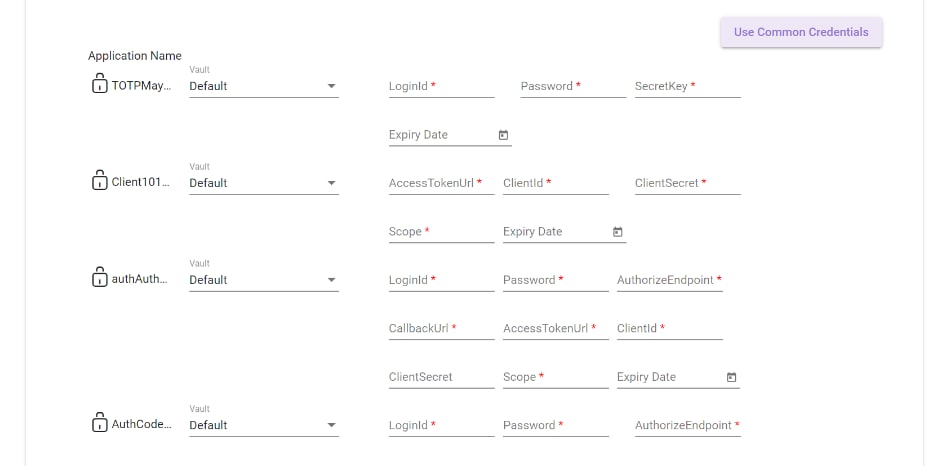
In the Vault Type, select the preferred option.
- In case, you click APPLY, then-
- A message as Setup Robot <Robotname> appears on the page.
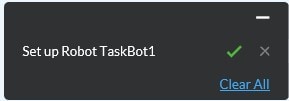
The newly created robot appears in the Total Robots and Stopped robots list view.
- A message as Setup Robot <Robotname> appears on the page.
- In case, you want to stat the robot immediately post applying the robot settings then, click APPLY & START.
- The Smart Resource Management window id displayed. It is an internal native machine learning model of AE RPA which calculates and displays the current memory usage on the current machine.
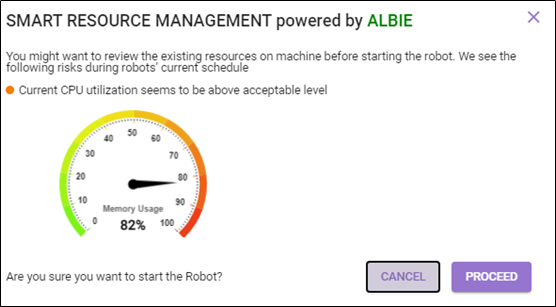
- In case the memory usage is at acceptable level then, click PROCEED to start the robot
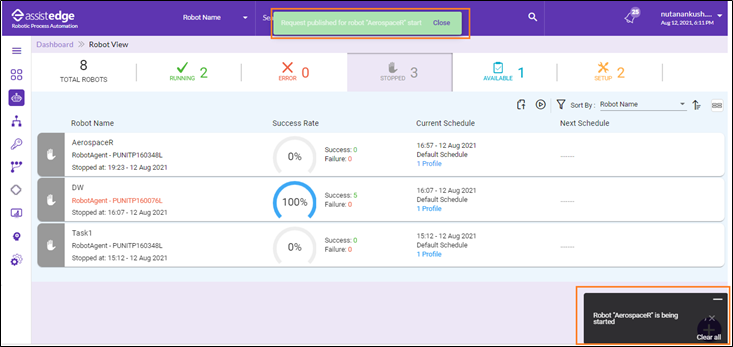
- A message appears as Start Robot request(s) sent successfully and also Starting Robot <Robot name> on the page.
- The Smart Resource Management window id displayed. It is an internal native machine learning model of AE RPA which calculates and displays the current memory usage on the current machine.
The newly created robot moves to Running robots view.