About AE Build Tool
You can find the AssistEdge command line utility VCSBuildTool in the AssistEdgeAutomation > app > aecicd > cli folder.
Run the dotnet VCSBuildTool.dll --help command from the path where the VCSBuildTool.dll file is saved to know the details of the actions that can be performed using this utility.
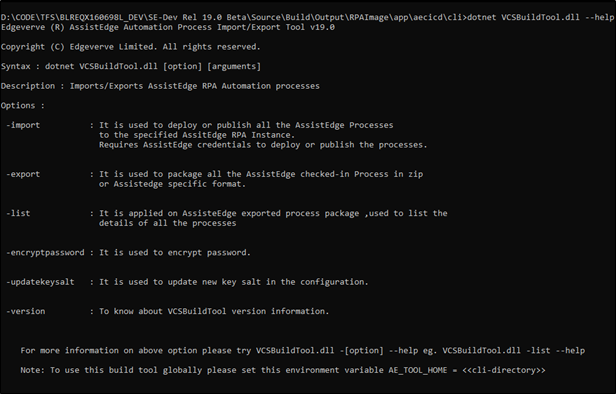
Below are commands and their syntax to help you with the smooth migration of automation processes:
Using the VCSBuildTool configure:
- Export command to create the required package
- Import command to deploy the package to another AE environment
|
Command |
Description |
|
dotnet VCSBuildTool.dll -export –help |
Displays the syntax and details related to the export command. |
|
dotnet VCSBuildTool.dll -import--help |
Displays the syntax and details related to the import command. |
|
dotnet VCSBuildTool.dll -list --help
|
Displays the syntax and details related to the list command. See the section List command to know more. |
|
dotnet VCSBuildTool.dll --encryptpassword |
Encrypts the specified password. Use the dotnet VCSBildTool –enryptpassword command to encrypt your password and then use the generated value as per your requirement. |
|
dotnet VCSBuildTool.dll –updatekeysalt |
Updates the key and salt values in the appsettings.json file located in the AssistEdgeAutomation > app > aecicd > cli folder. |
|
dotnet VCSBuildTool.dll -version –help |
Displays the information related to the VCSBuildTool version. |
|
NOTE: |
|
Export Automation Processes Using the Command Line Utility
Use the AssistEdge command line utility- VCSBuildTool to configure the export command creating a process package at the specified destination folder. To export the processes:
Open the command line prompt and run the dotnet VCSBuildTool.dll -export p:src=<source path> p:dest=<destination path> p:encrypt=<encryption required> p:provider=<database provider> p:url=<AE instance URL> p:username=<username of the AE instance> p:password=<encrypted password of the user of the AE instance> p:domain-<domain name of the user> p:verifysignature=<indicates if signed document needs to be verified>command from the folder where the command line utility is saved.
For example, dotnet VCSBuildTool.dll -export p:src=D:\FinanceAutomationProcesses p:dest=D:\FinanceExportProcess.zip p:encrypt=false p:provider=AE p:url=http(s)://hostname:portnumber p:username=robin.waltson p:password=9Han Cdcljsxjnjn== p:domain=xyz.com
The processes are exported and saved in the stated folder. Below is a sample screen shot of exporting processes from the Git server:
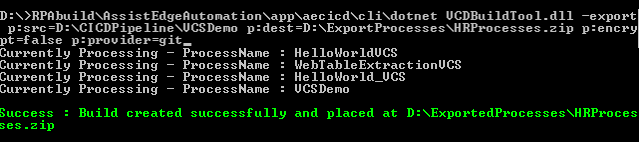
Following are the descriptions of parameters required in the above command prompt:
|
parameter Name |
Description |
|
src |
It is a mandatory parameter if the Git server is used for the export. Enter the path of the local Git repository along with the folder name where all the processes are checked-out from the Version Control System. For example, p:src=D:\FinanceAutomationProcesses. |
|
dest |
It is a mandatory parameter. Enter the path along with the folder name where the exported processes must be saved. For example, p:dest=D\FinanceExportProcess.zip/ or D\FinanceExportProcess.ae. If the encryption required is false, enter .zip with the folder name. For example, p:dest=D\FinanceExportProcess.zip. If the encryption required is true, enter .ae with the folder name. For example, p:dest=D\FinanceExportProcess.ae. |
|
encrypt |
It is not a mandatory parameter. Signifies if the exported package is encrypted or not. By default, the exported package is not encrypted. Enter true if encryption is required. |
|
provider |
It is a mandatory parameter. Signifies the source from where the processes must be exported. Enter AE for AE server database and Git for Git server database. |
|
url |
This parameter must be set only If the provider is AE. Signifes the api URL of AE instance. For example, http(s)://xyz241:8080/api/a. |
|
username |
This parameter must be set only If the provider is AE. Signifies the username of the AE instance user. The user having a relevant access to the AE instance can perform the export functionality |
|
password |
This parameter must be set only If the provider is AE. Signifies the encrypted password corresponding the entered username of the AE instance user. The user having a relevant access to the AE instance can perform the export functionality. The password must be encrypted if you want to provide the password in the in the command line itself. For example, p:password=jdkjldkjjkfkklkjfirieji39==. You can skip to provide the password in the command and provide the same when the utility runs. |
|
domain |
It is an optional parameter. Signifies the domain name of the enterprise. |
|
verifysignature |
It is an optional parameter. Checks if the process metadata files that are signed have been tempered or not, by verifying the attached signed document. Enter true if the documents are signed and false if they are not signed. |
|
NOTE: |
Manually merging a Branch to another Branch or the Master Branch when VerifySignature is set to true is likely to fail. Avoid using VerifySignature if merging of Branches is involved. |
Import Automation Process Using Command Line Utility
Use the AssistEdge command line utility- VCSBuildTool to configure the import to deploy or publish the exported processes to other or the same AE environment. To import the process package:
Open the command line prompt and run the dotnet VCSBuildTool.dll -import p:src=<source path> p:url=<AE instance URL> p:username=<username of the AE insatnce> p:password=<encrypted password of the user of the AE instance> p:domain-<domain name of the user> p:mode=<import mode> p:key=<EncryptionKey> p:salt=<EncryptionSalt> p:overwriteapp=<Application Overwrite Required> command from the folder where the command line utility is saved. For example, dotnet VCSBuildTool.dll -import p:src=D:\FinanceExportProcesses.zip p:url=https://hostname:portnumber p:username=robin.waltson p:password=7kjsdlksdjsfkbbnf== p:domain=xyz.com p:mode=deploy p:overwriteapp=true.
The processes are imported and published or deployed as per the specification.
|
NOTE: |
Processes that are locked by the user does not get imported. |
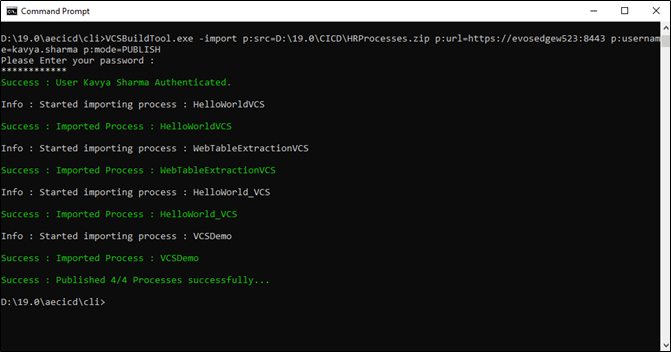
The total count of successfully imported processes are displayed. You can verify the same by accessing the Automation Studio of the AE instance where the processes are imported.
Below is the description of each parameter required in the above command prompt:
|
Parameter Name |
Description |
|
src |
It is a mandatory parameter. Signifies the path along with the folder name of the AE process package. For example, p:src=D:\FinanceExportProcesses.zip. |
|
url |
It is a mandatory parameter. Signifies the API URL of the AE server database where you want to import the processes . For example, http(s)://hostname:portnumber. If the encryption required is false, enter .zip with the folder name. For example, p:dest=D\FinanceExportProcess.zip. If the encryption required is true, enter .ae with the folder name. For example, p:dest=D\FinanceExportProcess.ae. |
|
username |
This parameter must be set only If the provider is AE. Signifies the username of the AE instance user. The user having a relevant access to the AE instance can perform the import functionality. |
|
password |
This parameter must be set only If the provider is AE. Signifies the encrypted password corresponding the entered username of the AE instance user. The user having a relevant access to the AE instance can perform the import functionality. The password must be encrypted if you want to provide the password in the command line itself. For example, p:password=67hjdbklkknjnlm==. You can skip to provide the password in the command and provide the same when the utility runs. |
|
mode |
It is not a mandatory parameter. Signifies if the processes must be published or deployed. Enter Deploy to deploy the processes and Publish to only publish them. By default, it is set to Publish |
|
key |
It is a mandatory parameter if either import happens on another server or the default value of the key is updated/changed. The value of the key is provided in the appsettings.json file available in the AssistEdgeAutomation > app > aecicd > cli folder. Signifies the encryption key of the AE Build Tool installed on another server. It is used to decrypt the encrypted AE process package generated by the AE Build Tool on the another server. |
|
salt |
It is a mandatory parameter if eith er import happens on another server or the default value of the salt is updated/changed. The value of the salt is provided in the appsettings.json file available in the AssistEdgeAutomation > app > aecicd > cli folder. Signifies the salt value of the AE Build Tool installed on another server. It is used to decrypt the encrypted AE process package generated by the AE Build Tool on the another server. |
|
overwriteapp |
It is not a mandatory parameter. Signifies if the applications must be over-written in the target instance. By default, all applications are not overwritten. Enter true if you want to overwrite the applications. |
List Command
The list command lists the details of all the processes exported in the package.
Open the command line prompt and run the dotnet VCSBuildTool.dll -list -<flag> p:src=<source path> p:outdir=<output file path> p:fileformat<output file format> p:key<encryption key> p:salt<encryption salt> command from the folder where the command line utility is saved. For example, dotnet VCSBuildTool.dll -list p:src=D:\AssistEdge\RPA_TEST_OUTPUTS\cliexport\vcs.zip.
Below is the sample screen shot with and without the flag parameter:
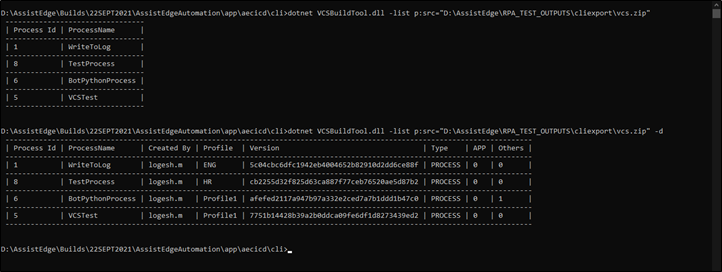
Below is the description of each parameter required in the above command prompt:
|
parameter Name |
Description |
|
flag |
It is not a mandatory parameter. Signifies the flag to list the processes in detailed view. The supported flag is d. |
|
src |
It is a mandatory parameter. Signifies the path along with the folder name of the AE process package. For example, p:src=D:\FinanceExportProcesses.zip. |
|
outdir |
It is not a mandatory parameter. Signifies the output file path that stores the details of the processes contained in the specified process package. |
|
fileformat |
It is not a mandatory parameter. Signifies the output file format that stores the details of the processes contained in the specified process package. Supported formats are txt and cvc. |
|
key |
Signifies the encryption key to decrypt the encrypted AE package generated from other server. |
|
salt |
Signifies the encryption salt to decrypt the encrypted AE package generated from other server. |
Self-Signed Document
The AE Build Tool helps you to sign the processes using a .p12 certificate. This lets you secure the process metadata files from any kind of breach or temper during the migration.
To sign the metadata files:
- Run the dotnet VCSBuildTool.dll --encryptpassword command from the path where the VCSBuildTool.dll file is saved.
- Enter your plain password. The encrypted password gets successfully generated.
- Access the Automation Studio.exe.config file at client-tools > AutomationStudio folder.
- Locate the VcsSettings parameter and update the encrypted password in the value field of the CertificatePassword key.
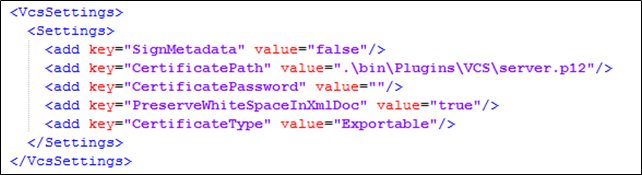
- Change the other default values of the VcsSettings parameter as per the following requirement:
- SignMetadata, change the value to true if you want to secure the metadata files as well.
- CertificatePath, change the value to the path of the certificate saved on your system.
- PreserveWhiteSpaceInXmlDoc and CertificateType key default values are not editable.
Advanced Configurations
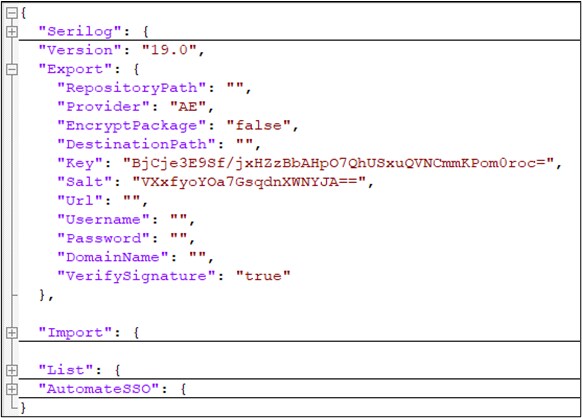
The default values of the commands can be modified in the appsettings.json file available in the AssistEdgeAutomation > app > aecicd > cli folder. Update the below file as per your requirement:
Automate SSO (Single Sign On) for SAML/OIDC Configured Setup
The SSO for the SAML/OIDC can be automated by modifying the appsettings.json file available in the AssistEdgeAutomation > app > aecicd > cli folder.
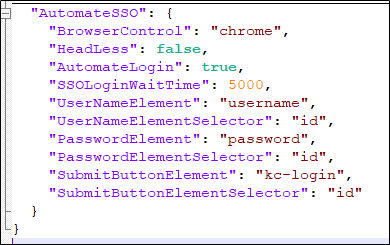
To enable SSO:
- Access the appsettings.json file file available in the AssistEdgeAutomation > app > aecicd > cli folder.
- Locate the AutomateSSO parameter and update the parameters as per your requirement:
- BrowserControl, set the URL where SSO automation needs to be done
- HeadLess, change the value from false to true for automating SSO without opening the URL
- AutomateLogin, must be set to true for enabling SSO automation
- SSOLoginWaitTime, set the time out value (in milli seconds) for executing the login steps
- UserNameElement, UserNameElementSelector, PasswordElement, PasswordElementSelector, SubmitButtonElement, and SubmitButtonElementSelector, set the Element and ElementSelector values of the parameters for automation the specified element in the SSO page.