The Canvas Tools Panel
The Canvas Tools panel is the interface where you can find pre-defined automation tools to suit your business needs.
Use the  to collapse the Canvas Tools panel and
  to expand it.

The Activity
Activity are pre-defined, out-of-box operators in Automation Studio. They are the building blocks that enables you to create the automation process workflow. Similar activities are clubbed under one tool category for an easy navigation.
Mark an Activity as Favourite
You can mark the frequently used activities in Canvas Tools as favorite. This enhances the ease of access to the activities marked.
Right click the selected activity and then click Add to Favourite. The activities marked as favorite are listed under Favourite Activity.
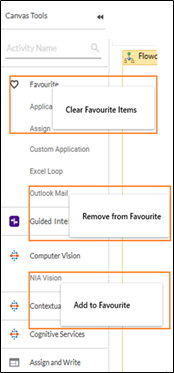
Right click the activity added to Favourite to remove from the list. Additionally, you can clear the entire list of favorites in a go by using Clear Favourite Items.
Using an Activity
You can drag an activity from the Canvas Tool pane and drop on to the Flowchart designer to add to a process workflow.
When you add an activity, details like the name of the activity, its properties, and the outline view of the selected activity appears.
Activity Symbols
Below are the functionalities of an activity:
|
Symbol |
Symbol Name |
Description |
|
|
Validation Error or Warnings |
Signifies either there is a validation error or the required inputs for the activity to proceed is currently missing. It disappears when required action is performed. |
|
|
Help |
Help that is available within Automation Studio itself regarding the particular activity such as its definition or usage. |
|
|
Annotations |
Add a note or a comment for additional information regarding the activity. |
|
|
Settings |
Settings that you can use to define features of an activity such as capturing data from a web application or to provide input/output parameters. |
|
|
Compiler Error |
Signifies the error that occurs when the compiler fails to compile the source code. |


