File Read
This activity allows you to automate the task of reading the text documents like DOCX and Rich Text format files. The entire document is read and the texts get stored as JSON strings. The JSON string can be further used as per the business requirement.
Using File Read Activity
- In the Canvas Tools pane, click File to expand the tool and view the associated activities.
- Drag the File Read activity and drop on to the Flowchart designer on the Canvas. The validation error symbol disappears when required inputs are provided.
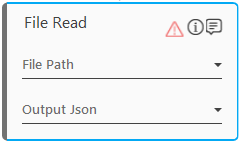
- In the File Path list, select the parameter holding the document file path along with the file name and file extension, for example, D:/documents/sample_doc.docx. You must define the parameter in the Parameter bar to store the value and make it available for the selection.
- In the Output Json list, select a parameter to store the output of the processed document in the JSON string format. You must define the parameter in the Parameter bar to make it available for the selection.
The File Read activity with a default name is created.
File Read Properties
The properties of File Read activity are listed in the following table and can be edited in the Properties grid on the right pane.
|
Property Name |
Usage |
|
Control Execution |
|
|
Ignore Error |
When this option is set to Yes, the application ignores any error while executing the activity. If set to NA, it bypasses the exception (if any) to let the automation flow continue; however, it marks the automation status as failure, in case of an exception. By default, this option is set to No. |
|
Delay |
|
|
Wait After |
Specify the time delay that must occur after the activity is executed. The value must be in milliseconds. |
|
Wait Before |
Specify the time delay that must occur before the activity is executed. The value must be in milliseconds. |
|
Misc |
|
|
Breakpoint |
Select this option to mark this activity as a pause point while debugging the process. At this point, the process freezes during execution allowing you to examine if the process is functioning as expected. In large or complex processes, breakpoints help in identifying the error, if any. |
|
Commented |
Select this option to mark this activity as inactive in the entire process. When an activity is commented, it is ignored during the process execution. |
|
DisplayName |
The display name of the activity in the flowchart designer area. By default, the name is set as File Read. You can change the name as required. |