Assign
This activity assigns a value to a variable or an argument. You can use an Assign activity for logical operation such as a loop counter, to increment the value, hold a value, assign a value to other variable or assign values to an array.
Using Assign Activity
- In the Canvas Tools pane, click Assign and Write to expand the tool and view the associated activities.
- Drag the Assign activity and drop on to the Flowchart designer on the Canvas.
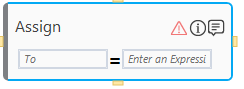
- In the To field, enter a name of parameter to which the value should be assigned. You can press Ctrl+Space key together from the keyboard to use IntelliSense to select the parameter. The name of the variable must be defined in the Variable or Argument panel in the Parameter bar or the system displays a compiler error.
- In the Value field, enter the value to assign to the parameter. The value can be constant (default value), dynamic (an parameter) or a combination of both.
An Assign activity with a default display name is created. The warning sign disappears once you provide the required inputs.
Assign Properties
The properties of an Assign activity are listed in the following table and can be edited in the Properties grid on the right pane.
|
Property Name |
Usage |
|
Control Execution |
|
|
Ignore Error |
When this option is set to Yes, the application ignores any error while executing the activity. If set to NA, it bypasses the exception (if any) to let the automation flow continue; however, it marks the automation status as failure, in case of an exception. By default, this option is set to No. |
|
Delay |
|
|
Wait After |
Specify the time delay that must occur after the activity is executed. The value must be in milliseconds. |
|
Wait Before |
Specify the time delay that must occur before the activity is executed. The value must be in milliseconds. |
|
Misc |
|
|
Breakpoint |
Select this option to mark this activity as the pause point while debugging the process. At this point, the process freezes during execution allowing you to examine if the process is functioning as expected. In large or complex processes, breakpoints help in identifying the error, if any. |
|
Commented |
Select this option to mark this activity as inactive in the entire process. When an activity is commented, it is ignored during the process execution. |
|
DisplayName |
The display name of the activity in the flowchart designer area. By default, the name is set as Assign. You can change the name as required. |
|
To |
Name of the variable or the argument that the activity assigns its value to. |
|
Value |
A value that is assigned to the variable or argument. |