Launch and Sign-In
You can download and launch the EnterprisePersonalAssistant (EPA) application from the Client Tools section in the RPA Admin Module.
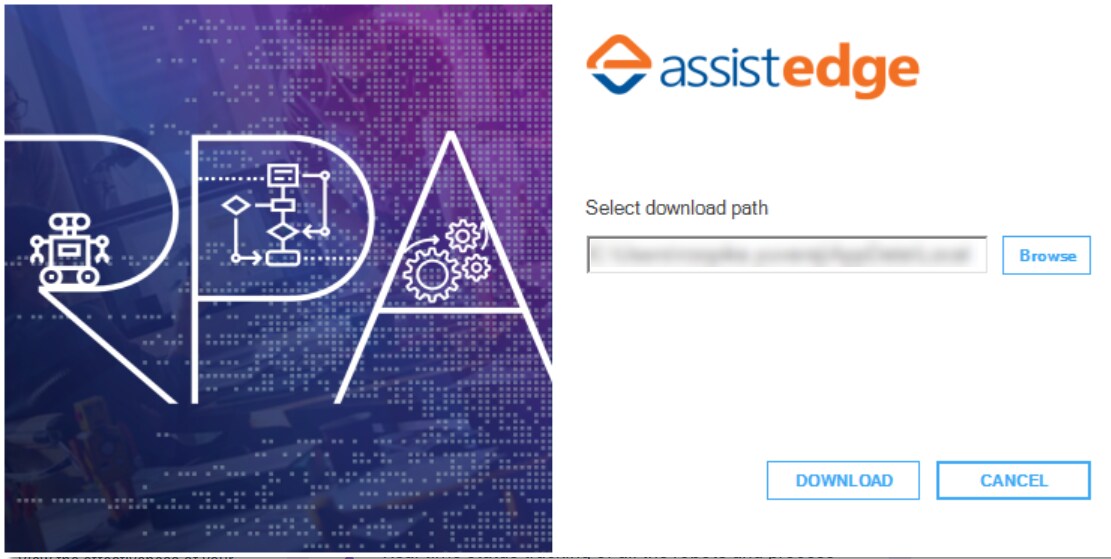
Double-click .exe to launch EPA, the EPA - Download window appears. Click Download to download EPA tool on your system. For more information, see User Interface section in the AE-RPA-Administrator Guide.
The Enterprise Personal Assistant loading window appears.
Sign in
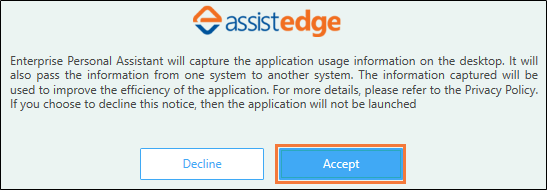
After loading, the Enterprise Personal Assistant bot gets launched and the data privacy notice/privacy disclaimer pop-up window appears.
- On the Data Privacy Notice.
- Click Accept to continue
- Click Decline to abort the launch
|
NOTE: |
If required, you can remove the data privacy pop-up window. For more information, see the section Configuration > Data Privacy of AE-RPA-Control Tower. |
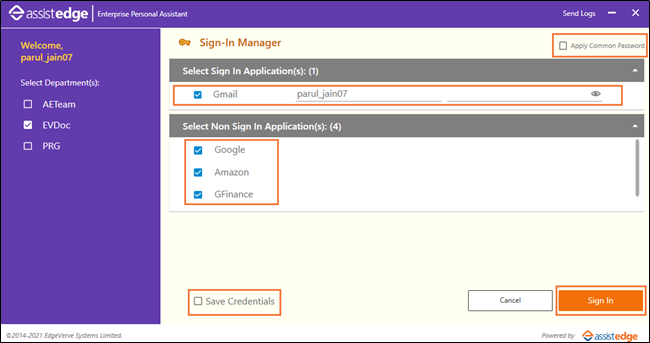
- When you click Accept, the Sign-In Manager screen appears.
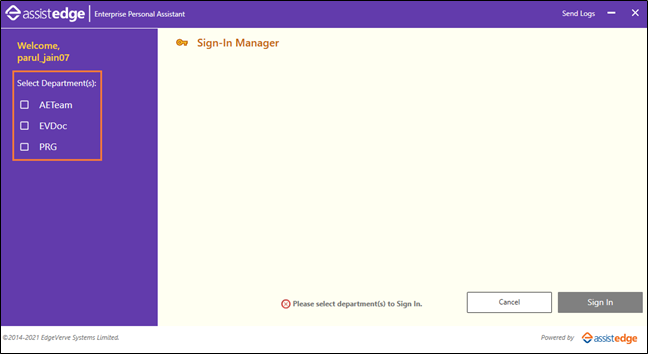
- Select a Department (Profile) from the displayed Department(s). The profiles that are mapped to your username are visible in the left panel. By default, no profiles are selected.
- Based on the selected profiles, both the Sign In and Non-Sign In applications assigned to the profile are automatically displayed.
- Select the check box next to the applications you want to launch.
- By default, all the applications are selected.
|
NOTE: |
If check boxes are not selected, then applications launches directly on trigger automation. However, for Sign In applications, it is recommended to launch the applications before triggering the automations. |
- For the first time login, enter the login credentials for the sign-in applications.
- In case the process is containing OAuth Activity, then you are required to enter the details as per the configurations performed for OAuth activity type which includes Authorization Code, Authorization Code with PKCE, Client Credentials, Implicit Grant and Resource Owned Password Protected, TOTP, and Auth Manager. For more information, see AE-RPA-Engage-Automation Studio Manual.
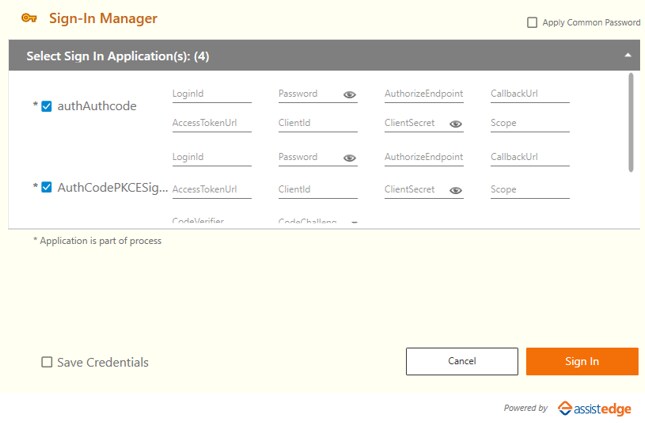
- In case the process is containing OAuth Activity, then you are required to enter the details as per the configurations performed for OAuth activity type which includes Authorization Code, Authorization Code with PKCE, Client Credentials, Implicit Grant and Resource Owned Password Protected, TOTP, and Auth Manager. For more information, see AE-RPA-Engage-Automation Studio Manual.
- Click Save Credentials for automatic login to the applications again.
- Select Apply Common Password at the top-right if you have a single password for all the applications. You need not type the password for each application separately.
- Click Sign In to view the launched applications by Enterprise Personal Assistant. A notification Application Launch Completed pop-up appears.

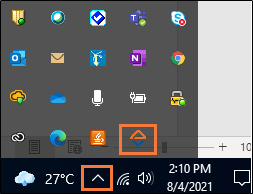
An icon gets added to the system tray which can be used to open the Enterprise Personal Assistant. Click the  (Arrow) icon, a system tray appears. Double click the
  (Enterprise Personal Assistant) icon.
|
NOTE: |
Click Send Logs in the Sign-In Manager window if there is an error during sign in. The system composes an email with the following details:
You can send the email to the system administrator or the support team |