Step-By-Step Guide to Use Code Editor to Change the File Extension
Let's see an example of changing the file extension of a .txt file to .jpeg file using the Code Editor activity and print a message for successful change of the file extension.
To create the automation process:
- Create a new process.
- In the Parameter bar:
- Create an In argument, inputargname and define the file path of the .txt file.
- Create an Out argument, outputargname to store the display message.
- From the Canvas Tools panel, add the Application activity and in the Application Type list, select WindowsApps.
- In the Select An Application list, add a new windows application at this point of time. To add windows application:
- In the Select An Application list, click Add New Application. The Add New Application dialog box appears.
- In the Application Name field, enter a desired name of the windows application.
- In the Path field, enter the notepad EXE file available on the system.
- In the Additional Parameters field, enter the path of the file (along with its name) that you want to open within the application.
- Click SAVE. The windows application is added.
- Double click the Application activity, drag the Code Editor activity and drop inside the Application activity.
- Click the
 (Settings) icon and then click Add New CodeEditor. The Script Editor dialog box appears with the default template and the required interface already added.
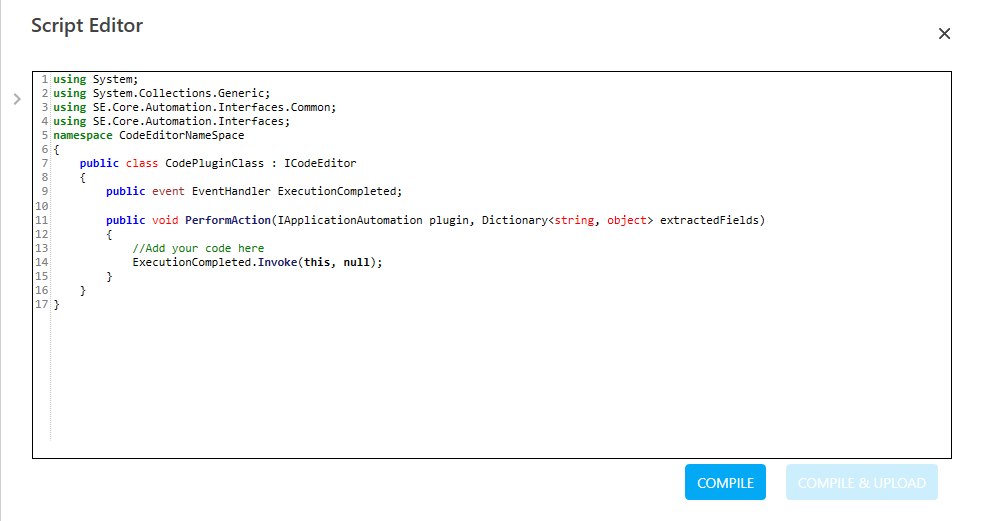
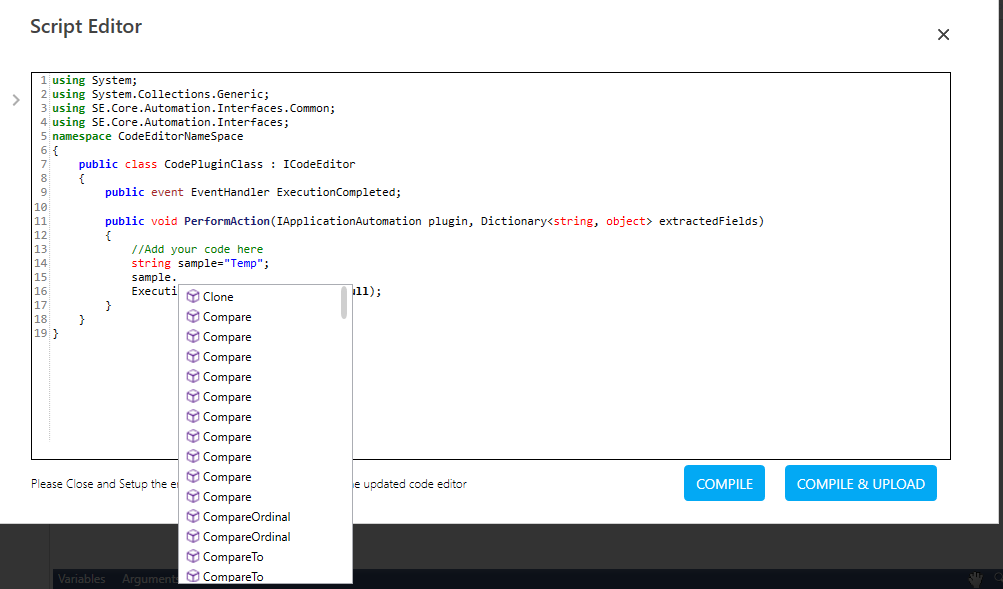
- Write the required code under the PerformAction method. The in-built script editor provides expression building aid using the IntelliSense feature of Automation Studio.
- After the code editor operations are completed, raise the ExecutionCompleted event.
- Click COMPILE to check for any compilation error in the code. Errors found are highlighted; else, the No Compilation Errors message is displayed. Close the displayed message.
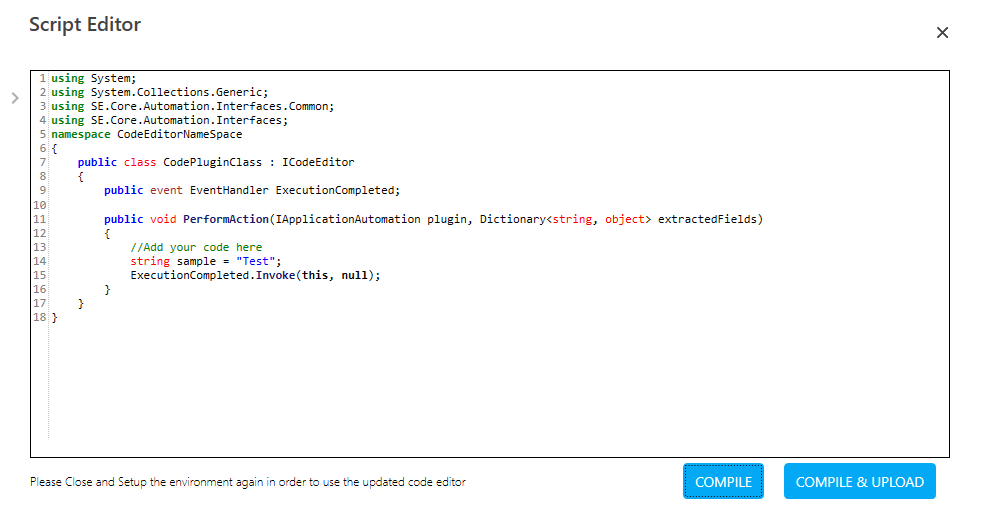
- Click COMPILE & UPLOAD to upload and save the code editor DLL in the AssistEdge database. The Save Code Editor dialog box appears.
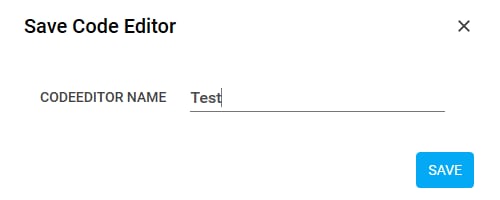
- In the CODEEDITOR NAME field, enter a desired name of the code editor, and then click SAVE. The code editor is successfully uploaded and saved in the AssistEdge database.
- Click the
- Click the (Settings) icon, and then click Output Mapping. The Output Parameters dialog box appears. This lets you store the output of the code editor DLL file (if any) in a parameter of the automation process workflow.
- Click Add to add a new row for mapping the required parameter to store the output.
- In the Parameter drop down list, select the outputargname parameter you want to map with the corresponding output defined in the code editor DLL.
- Click CONFIRM to save the mapping.
- To view the output in Automation Studio, let's add WriteLine activity. You can publish, deploy and assign this process to a robot, if you want to execute the process outside Automation Studio.
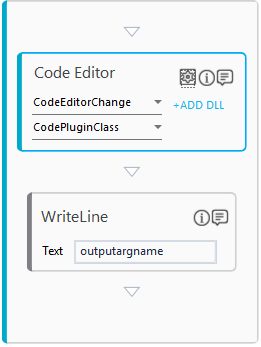
- Add Writeline activity and in the Text field, enter the outputargname argument.
- Save the process. Below is the sample automation process workflow:
- Setup the environment and perform test run.
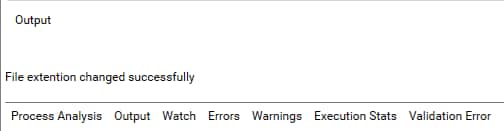
The Output console displays the specified message: