Starting with Reporting
Reporting provides set of various out of box dashboards comprising multiple visuals (table, graph, trends, etc.) depicting the overview of automation activities.
Accessing the Reports
You can access the reporting page only with the relevant access in following ways:
1. Click Reporting.
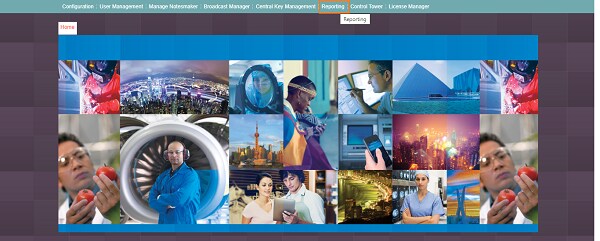
The Reporting page is displayed.
2. In
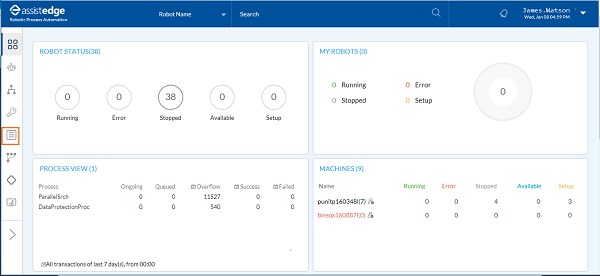
the Control Tower, click the  (Reports)
icon .
(Reports)
icon .
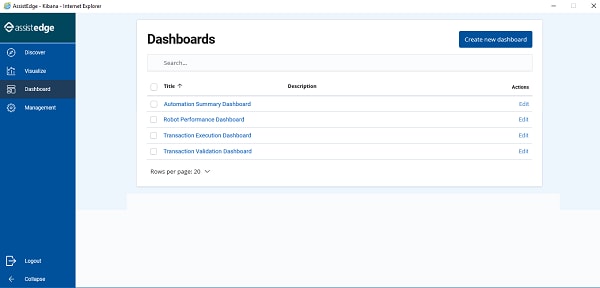
The Reports page is displayed.
3. The Reports page of Admin module opens the RPA Reports to view and create operational and business reports.
This page contains following tabs:
· Discover: Discover displays the raw transactional data of the configured index patterns in the form of json document.
· Visualize: Visualize is used to view already created report or one can create custom reports. You can create different types of visualization such as graphs, pie-charts, data-tables and so on.
· Dashboard: Dashboard is used to view already created Dashboard or you can create new Dashboard. Dashboard is a collection of visualizations, which is a logical group of reports for showing an insight. Following are few of the out-of-box enterprise reports, such as:
§ Automation Summary Report
§ Automation Volume
§ Transaction Volume report
§ Automation Execution Volume: Time Trend
§ Bot Summary
§ Bot Execution Volume
§ Transaction Execution: Profile View
§ Transaction Execution: Process View
§ Automation Transaction Validation
§ Automation Validation Fallout Reasons
To know more about the AE RPA out of box reports, see Dashboard section.
· Management: Management is used to manage index pattern, indices and so on.
At the bottom left corner,
you can find  ( logout) and
  (collapse window) option.
Click the respective icons either to logout of the application
or collapse the window .
(collapse window) option.
Click the respective icons either to logout of the application
or collapse the window .
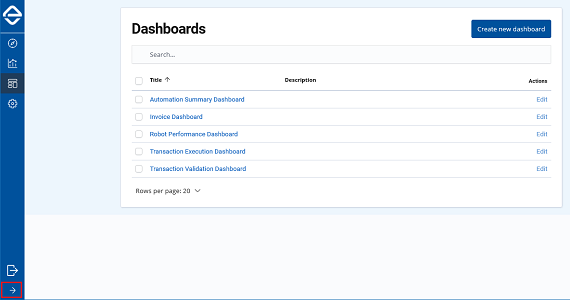
Click the  (Expand Side bar) icon to expand the reports page
view.
(Expand Side bar) icon to expand the reports page
view.
Component Unavailable - Error Message
If you try to log into the application and not able to login; an error message appears on the page. This error may appear in the following circumstances:
· Incase of any dis-connectivity between the RPA components
· Incase user has logged in to system for longer time and session time expires.
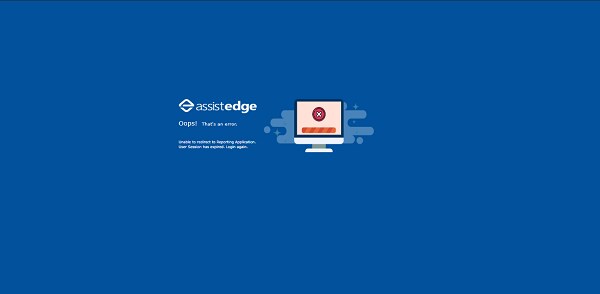
You can login to system and start working, once all the components are started and running. For more information about the details of error or trouble shoot, see Troubleshooting Guide.
Related Topics