Step-By-Step Guide to Use Vision to Retrieve Content From the Image
Let's create an example to automate the process for retrieving content from the image.
Prerequisite:
1. In the Admin menu, add an application of Application type - CognitiveApps.
2. In the Application Properties panel:
· In the Display Name field, enter VisionAPI.
· In the License Type list, select the type of license you have to consume for API services.
· In the Login Type list, select the type of login.
3. Click the  (Save Properties) icon to save
the application details.
(Save Properties) icon to save
the application details.
The cognitive application is created.
To create a process with Vision activity:
1. Create a process.
2. In the Parameter bar, create an In argument Read of Argument type - Object and set a Default value as per your image location. For example, "D:\August Bill Claim.png".
3. In the Parameter bar, create an Out argument Retrieve of Argument type - String.

4. From the Canvas Tools panel, add the Application activity to the Flowchart designer on the Canvas.
5. In the Application Type list, select CognitiveApps.
6. In the Select An Application list, select VisionAPI.
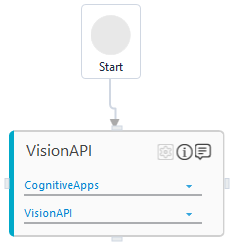
7. Double click the Application activity box.
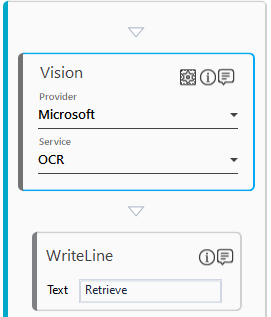
8. From the Canvas Tools panel, add the Vision activity to the Flowchart designer on the Canvas.
9. In the Provider list, select Microsoft.
10. In the Service list, select OCR.
11. Click
the  (Settings)
icon to configure the Configuration
details.
(Settings)
icon to configure the Configuration
details.
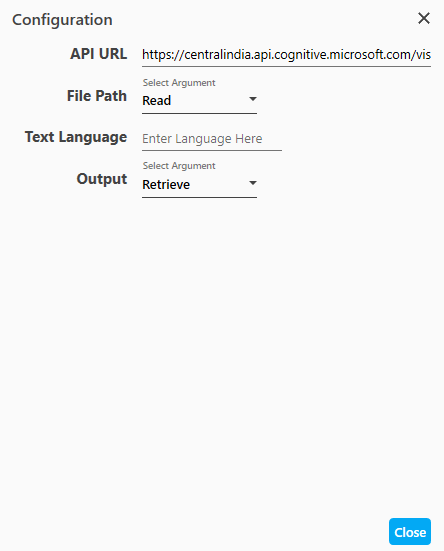
12. Enter the API URL.
13. In the File Path list, select Read.
14. In the Output list, select Retrieve.
15. Click Close.
16. From the Canvas Tools panel, add the WriteLine activity to the Flowchart designer on the Canvas.
17. In the Text field, enter Retrieve.
18. Save the process.
19. Set up the environment and perform test run.
20. In the Setup Environment window, enter the Sign-in User ID or Sign-in Password/Key as per your selection in the Login Type list. The Login Type is selected while performing the cognitive services prerequisites.
21. Click SETUP.
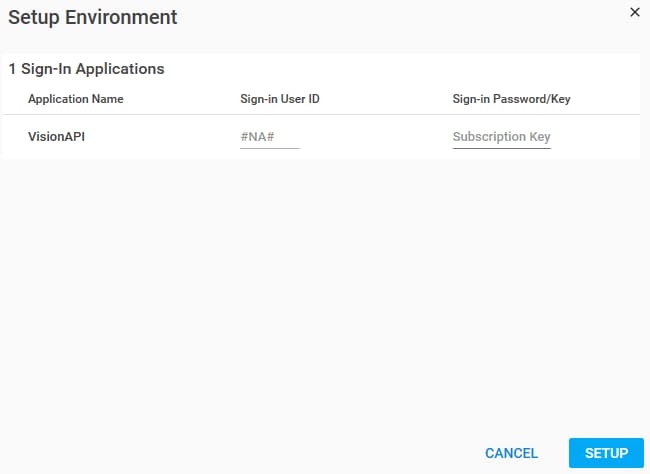
The console display the output in the JSON file format.

Related Topics