Accessing Dashboard
This page provide information to access the reporting dashboard.
To access the dashboard page:
- Login to the Admin Module.
- Navigate to the Reporting tab. The Reporting Dashboard page displays.
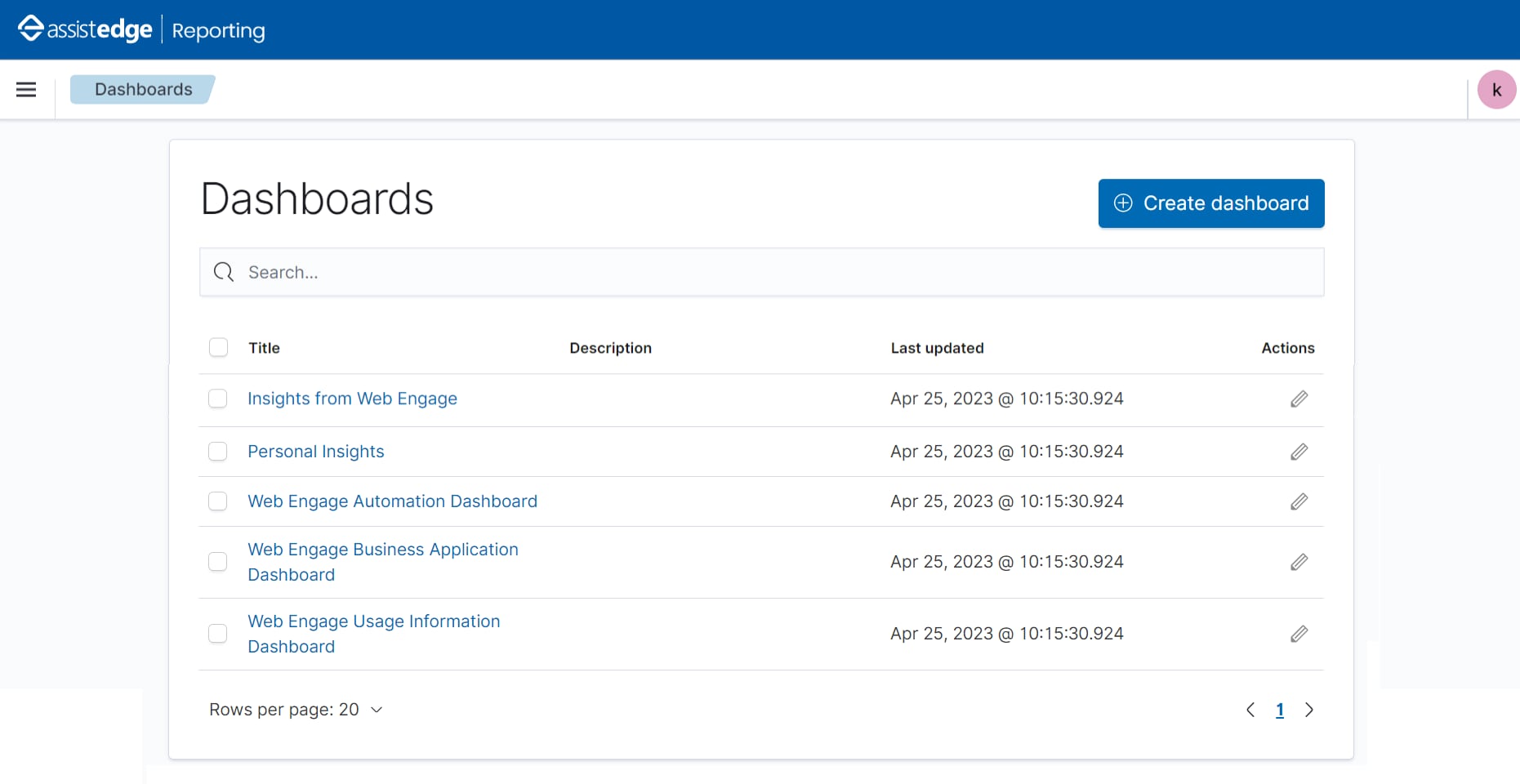
By default, the Dashboards page displays 20 dashboards. However, if you have more than 20 dashboards, update this number to match the total number of dashboards uploaded, else, some of the dashboards does not display on the Dashboards page.
|
NOTE: |
The dashboards that do not display on the Dashboards page are still searchable. |
To update the default number of Dashboards:
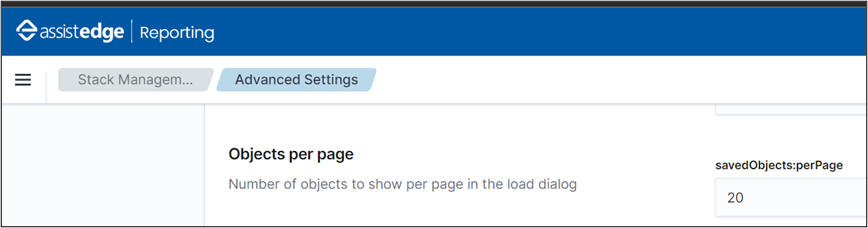
- Navigate to Reporting > Stack Management > Advanced Settings.
- Updated the Objects per page value to match with the total number of dashboards uploaded. The recommended value is 100.
Adding Filter
Follow the below steps if you want to apply filter on the data that is displayed in the reports.
- Click the desired dashboard link on the Dashboard home page.
- Click Add filter.
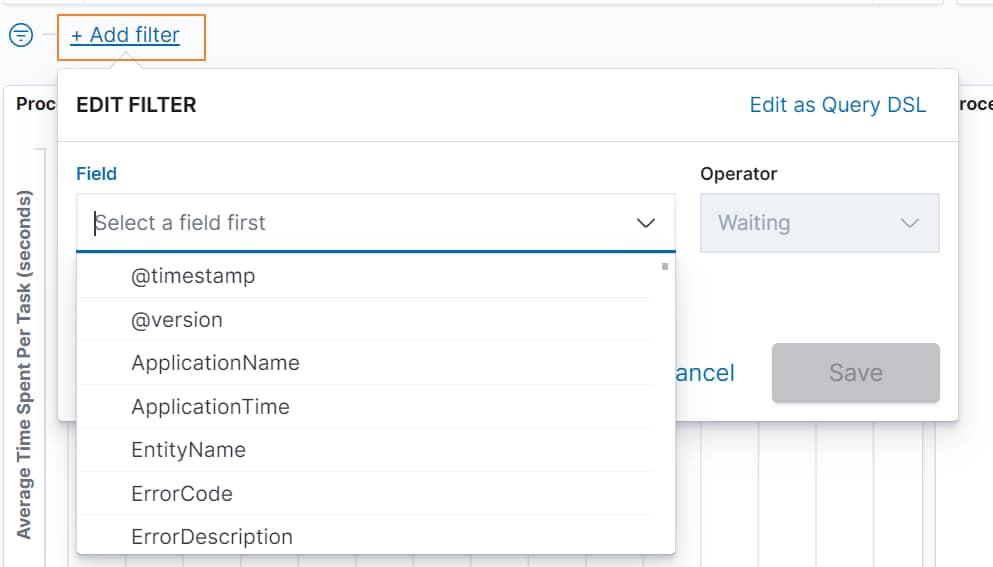
- The Add filter window appears. Select the required filter, enter the inputs, and click Save.
- In the Field drop-down list, select the required filter criteria. Based on the selected criteria, the other fields appear where you can provide the inputs.
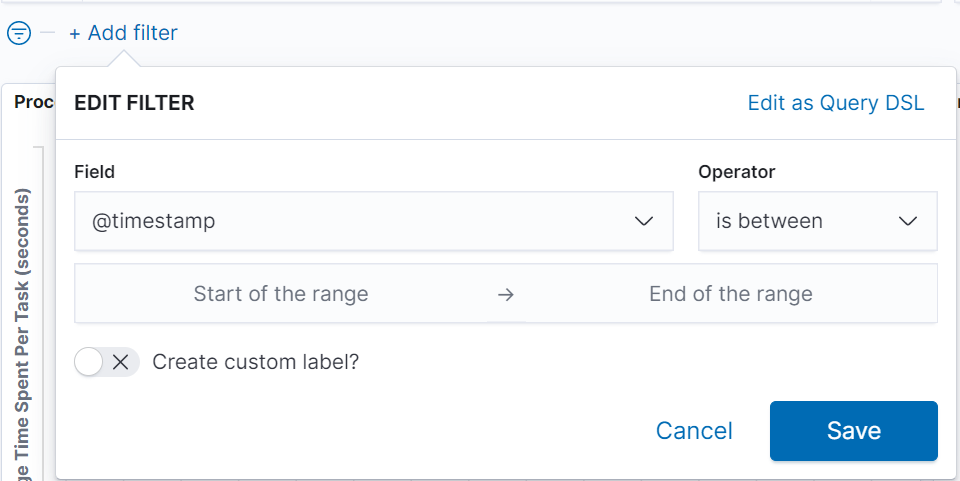
- Based on the applied filter, the data is displayed in the generated report.
If any time filter is applied, transactions for the applied time filter is shown. For example – Time filter is applied to view data from 08:00 till 09:00 and no transactions will have initiated in this duration thus initiated transactions would show zero, however if any transaction initiated before 08:00 and gets executed at 08:15 will come under execution success, execution failure or execution intervened based on transaction output however it is not reflected under Initiated Transactions for the applied time filter.
- In the Field drop-down list, select the required filter criteria. Based on the selected criteria, the other fields appear where you can provide the inputs.
|
NOTE: |
Filter Data: Filter should always be applied on Transaction ID field to extract data. If filter is applied on any other field than transaction id, then according to applied filter only partial data is shown. |