Summary and Notesmaker Customization
AssistEdge Engage comes with features which enable user to create their own custom Summary and Notesmaker.
In Summary page, user can also add controls to trigger Processlets and add their own custom controls.
Creating Summary page UI & Implementation of ISummary
Follow the below steps to create custom summary page:
- Create a new class library project in Visual Studio.
- Add a reference to Utilities.Interfaces to the project.
- Add a new WPF user control file (.xaml), and create a custom UI for Summary page.
- Edit the code behind the user control class and inherit the ISummary interface.
- Add a reference to Proton.Utilities.Common to the project.
- Provide implementation for ISummary methods/Properties for a custom Summary page:
- Reset()
This method is called when Engage user resets Engage. Write reset logic for summary page in this method which clears the controls of the Summary page. - DoDispose()
Write a logic to dispose the summary page. All subscribed events are unsubscribed in this method. - Launch()
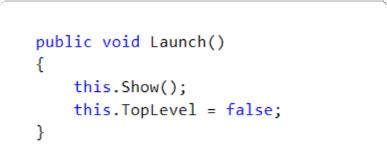
This method is called while loading summary page in tab. Write logic to launch the summary page.
This method can be empty for an xaml page. For Windows forms, write code in this method as shown below to launch the page.
|
NOTE: |
For windows form, TopLevel property of form is set to false for docking the Summary page. |
- Setter method of SummaryContext property
Populate controls of summary page with the context data available as value of this property. Only application’s IsExtracted fields data are available in this dictionary and are retrieved based on the control Id. Seeto the below code snippet for more information.
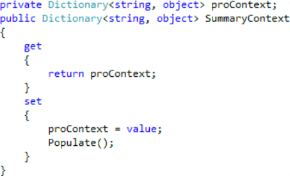
Below is the implementation of Populate method:
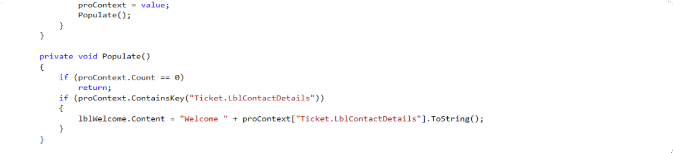
Here ProContext is the dictionary, where key is prefixed with the Application Name (for example: ApplicationName.KeyName)
- Setter method of UniqueId
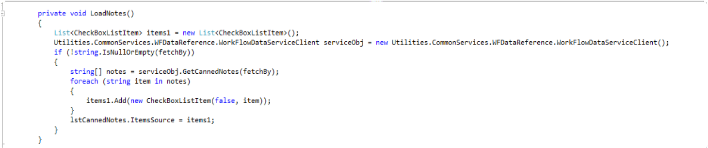
Logic to fetch Canned Notes for Notesmaker page is written in this method. Canned Notes are fetched from Workflow service by giving UniqueId as input to GetCannedNotes API of service. Add Utilities.CommonServices as reference to the project to access Workflow service.
Seeto the below code snippet for more information.
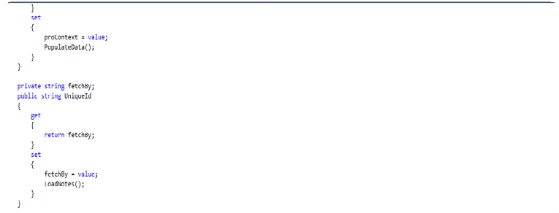
Below is the implementation of LoadNotes method:
Custom Summary Templates
From version 1.0 onwards Customizable Summary Engage-Dashboard sample templates have been provided for easy configuration and as a styling reference for any custom controls to be used on Summary Dashboard in Engage.
Follow the below steps to configure the templates:
- The CustomSummary project is available in EngageCustomControlsProjects solution in the AddOns folder in the build.
- Reference of following DLLs need to be updated in the CustomSummary Project:
- Utilities.Interfaces
Path: <Build>\client-tools\AutomationRuntime\Engage\Utilities.Interfaces.dll - MaterialDesignThemes.Wpf.dll
Path: <Build>\client-tools\AutomationRuntime\Engage\ MaterialDesignThemes.Wpf.dll - Xceed.Wpf.AvalonDock.dll
Path: <Build>\client-tools\AutomationRuntime\Engage\Xceed.Wpf.AvalonDock.dll - MaterialDesignColors.dll
Path: <Build>\client-tools\AutomationRuntime\Engage\ MaterialDesignColors.dll
- Utilities.Interfaces
- The MainWindow class in this project already implements the ISummary interface with empty containers for all the methods. Implementation can start modifying this class to customize the CustomSummary.
- Once the Custom Summary has been implemented, build the CustomSummary project in x86 mode.
- The resulting Summary DLL can then be mapped to a process from the Attended Automation tab of the Studio.
- If the same Summary DLL shall be loaded for every process selected in Engage, then place the CustomSummary.dll (if the DLL name is unchanged) in the ProtonFiles\DllRepository folder of Engage.
- Ensure to place all the dependency DLLs at the same Engage as of the Summary DLL while mapping the process to the Summary in Studio.
- While implementing different Custom Summary for different processes, ensure that the Assembly name is unique in each summary DLL. The Assembly name can be changed in the project properties in Visual Studio. For Example: The Default CustomSummary DLL has the Assembly name as CustomSummary , when creating a Summary for a particular process, ensure a unique Assembly name is assigned to the Summary.
- To know more on how data binding is done, see CustomDashboardDataBindingSampleCode.CustomDashboardDataBindingSampleCode.
- For more details on out-of-the-box available templates that can be used for customization, see CustomDashboardTemplate.CustomDashboardTemplate.
Calling Processlet from Summary Page
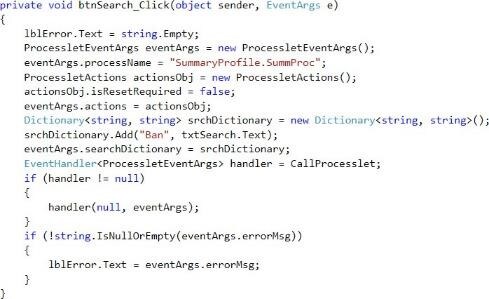
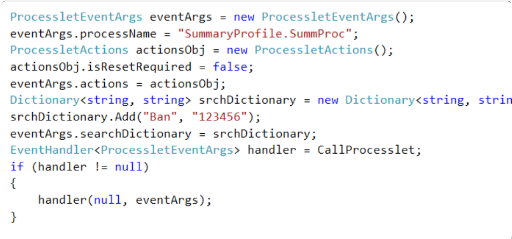
To call Processlet from any event of Summary page, CallProcesslet event is invoked by passing the object of ProcessletEventArgs with it. Processlet name, search parameters for Processlet and actions are configured via the ProcessletEventArgs object.
ProcessletEventArgs class
- ProcessName: name of processlet to be invoked (format: <ProfileName>.<ProcessletName>)
- actions: actions to be performed before calling processlet
- searchDictionary: Dictionary with input parameters for processlet
- errorMsg: This variable contains the error message if there is any issue in invoking processlet. Error message is fetched after invoking CallProcesslet event. Write a code to show the error message as per the business requirement.
Seethe below code for more information:
Once, these configurations are complete, build the project. Launch Studio and map this DLL to the General process. For more details, see Feature Mapping.
Calling Processlet using Repository Object
Follow the below steps to call Processlet apart from the Summary page:
- Implement ISummary interface in the class from where Processlet is invoked.
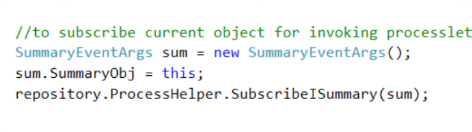
- Code to subscribe an object for invoking Processlet:
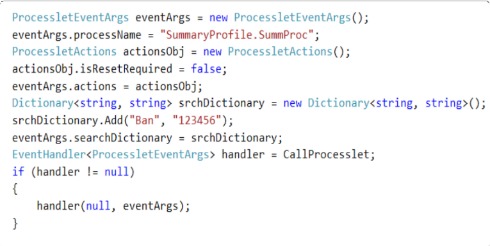
- Invoke Processlet as displayed in the code below.
- Once Processlet execution is complete, unsubscribe the object to release it.

- After calling UnsubscribeISummary method, Processlet cannot be invoked from that class. Subscribe it again for invoking Processlet.
Calling Processlet using ISEHelper
Follow the below steps to invoke Processlet from class, which has the ISEHelper interface implemented:
- Implement ISummary interface in the class from where Processlet is invoked.
- Code to subscribe an object:

- Invoke Processlet as displayed in the code:
- Once Processlet execution is complete, unsubscribe the object to release it.

- After calling UnsubscribeISummary method, Processlet cannot be invoked from that class. Subscribe it again for invoking Processlet.