Engage Automation Execution Details Dashboard
Following reports are available in the Engage Automation Execution Details Dashboard:
Automation Execution: Request View
- Each search request executed in Engage with a unique search ID and Search input is shown.
- It includes the details of the time spent on different activities including the first search completion and the next search initiation.
- Failure, success or intervened for each search request along with failure reason which can be used to analyze, to improvise and decrease the turnaround time for the process.
- SLA adherence is for each request is shown.

Following table provides the report fields description.
| Automation Execution Request View | |
| Field Name | Description |
| Profile | Indicates the name of the profile. |
| Process | Indicates the name of the process you are working on. |
| User | Indicates the name of the user working on the process. |
| Search ID | Indicates the ID of that particular search. |
| Search Input | Displays the text input for the search. In case data is anonymized from Automation Studio, then it will appear as masked. For more information, see Data Protection section in AE-RPA-Engage-AutomationStudioManual. |
| Search Date | Displays the date when the search was performed. |
| Handle Time (seconds) | Indicates the average time spent on all the transactions. |
| Search Time (seconds) | Indicates the time taken for the search to be completed. |
| Post Search Activity Time (seconds) | Indicates the time spent on the process, once the search is performed. |
| Execution Status | Indicates the status (Success, Fail, or Intervened) of the transaction. |
| Execution Fallout Reason | Indicates the reason for the failed transaction. |
| SLA Compliance | Indicates the percentage of time a particular automation request was completed and successfully executed within the defined SLA timeline. The process SLA can be defined at the time of deploying a process in the Automation Studio. |
User Execution View
- Time spent on each request with details of unique search ID allocated for each request.
- The search input for each request and details of time spent on each search and time spent on activities post search.
- Status of all search transactions i.e. success, fail or intervened and failure reason is shown.
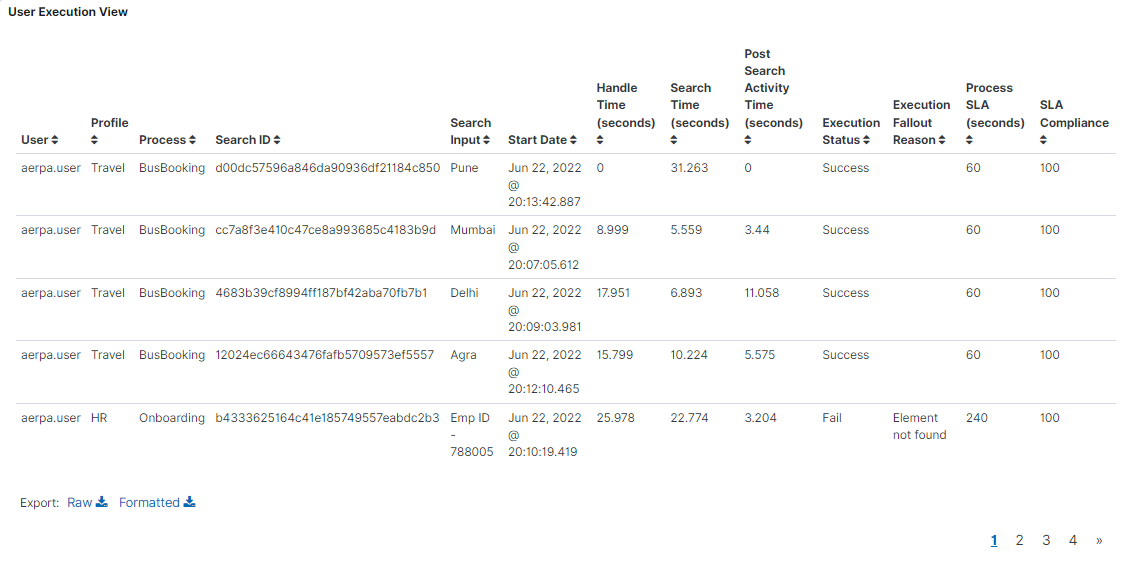
Following table provides the report fields description.
| User Execution View | |
| Field Name | Description |
| User | Indicates the name of the user working on the process. |
| Profile | Indicates the name of the profile.. |
| Process | Indicates the name of the process you are working on.. |
| Search ID | Indicates the ID of that particular search. |
| Search Input | Shows the text entered in the Search Input field. In case data is anonymized from Automation Studio, then it will appear as masked. For more information, see Data Protection section in AE-RPA-Engage-AutomationStudioManual. |
| Start Date | Shows the date and Time the transaction was started. |
| Handle Time (seconds) | Indicates the average automation time spent across all the transactions. |
| Search Time (seconds) | Indicates the time taken for the search to be completed. |
| Post Search Activity Time (seconds) | Indicates the time spent on the process, once the search is performed. |
| Execution Status | Indicates the status of the transaction (Success, Fail, Intervened). |
| Execution Fallout Reason | Indicates the reason of the failed transaction. |
| Process SLA | Indicates the expected execution time configured in Studio. |
| SLA Compliance | Indicates the percentage of time a particular automation request was completed and successfully executed within the defined SLA timeline. The process SLA can be defined at the time of deploying a process in the Automation Studio. |