Rollback
If errors occur during the installation process, follow the below steps to roll back the applied changes.
Rollback server-side components
|
NOTE: |
|
To apply the rollback for server-side components:
- Stop all the client-side and server-side components. Refer AE Commands from AE-RPA-Engage Installation Guide to know the steps to stop the components.
- Open the command prompt and change the directory to <InstallationDirectory>\scripts.
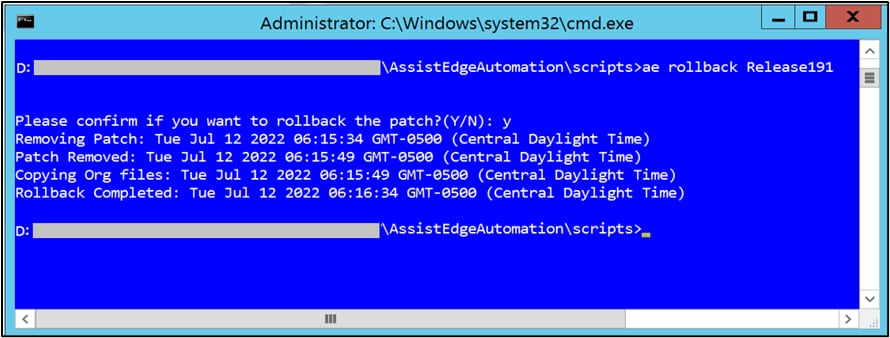
- Run the rollback command:
- For windows: ae rollback <folder name>
For example, ae rollback Release191 - For Linux: ae.sh rollback <folder name>
For example, ae.sh rollback Release191
NOTE:
The folder name you specify in the command should match the name created for 19.1 upgrade.
- For windows: ae rollback <folder name>
- Once the rollback is successful, the changes done as per the instructions in the presteps.txt and poststeps.txt files need to be reverted manually.
- Start all required services and components. Verify the status of the components.
Rollback client-side components
This section includes following:
|
NOTE: |
You can roll back the last applied patch for robots or robot agent. For more information, see AE-RPA-Engage-Update Management Guide. |
Automation studio
All the backup files for automation studio are available at, <InstallationDirectory>\Automationstudio\bin\Downloads\Backups\<Release191>\AutomationStudio
Engage
All the backup files for 2.x Engage are available at, <InstallationDirectory>\Engage\Downloads\Backups\<Release191>\Engage
EPA
All the backup files for 19.x EPA are available at, <InstallationDirectory>\EnterprisePersonalAssistant\Downloads\Backups\<Release191>\EnterprisePersonalAssistan