Launch and Sign In to Engage
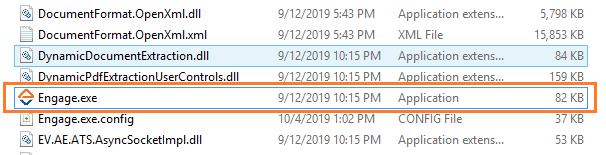
Engage executable file is provided with the product package and is located at ..\AutomationRuntime\Engage\Engage.exe.
- Double-click Engage.exe to launch Engage.
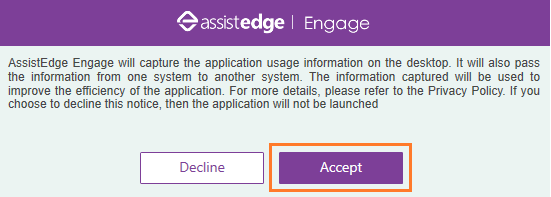
- The data privacy notice/privacy disclaimer pop up window appears.
- Click Accept to continue.
- Click Decline to abort the launch.
The Signin Manager screen appears.
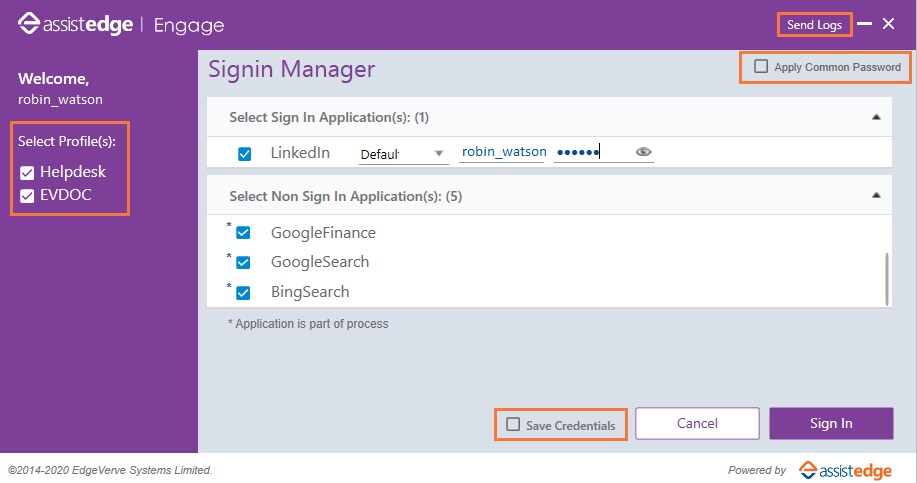
- The profiles that are mapped to your username are visible in the left panel. Select the required profiles. Based on the selected profiles, both the Sign In and Non Sign In applications assigned to the profile are automatically displayed.
- Select the check boxes next to the listed applications you need to launch. By default, all applications are selected.
|
NOTE: |
An Asterisk (*) against an application indicates that it is a part of a process. |
- If you are signing in for the first time, you need to enter the credentials for the sign in applications.
There are two ways to login to Sign In Applications:
- Default
- CyberArk
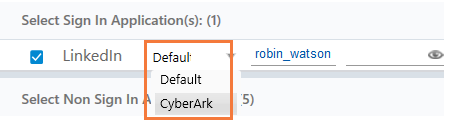
- Default: It is set to Default when you launch Engage. Enter the User Name and Password and sign in as a regular process. By default, the credentials of different applications are stored in product database and are saved in encrypted form in the json files.
- CyberArk: AssistEdge Engage is now CyberArk compliant. With CyberArk, you get an enhanced security for your applications. CyberArk Enterprise Password Vault is independent application which maintains application credentials. For more details on CyberArk, see https://www.cyberark.com/.
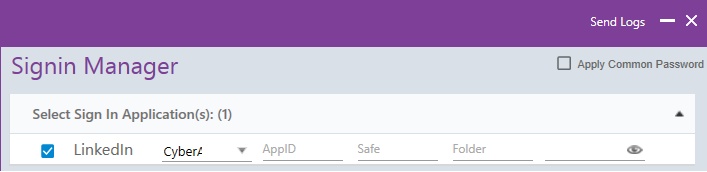
If you are using CyberArk Enterprise Password Vault to save the credentials, select the CyberArk type and follow the below steps:
- In the AppID field, enter the AppID that is authorized to provide access to CyberArk and retrieve credentials.
- In the Safe field, enter the CyberArk safe ID that contains the credentials for the applications which is required to be scanned.
- In the Folder field, enter the CyberArk folder ID that contains the credentials for the applications which is required to be scanned. The default folder is Root.
- In the Object field, enter the name of the object that stores the credentials.
Based on these 4 values, it fetches the credentials from CyberArk. These values are configured in CyberArk vault by the administrator. For more information, contact your system administrator.
Click Save Credentials to save the credentials for automatic login to the applications again. If you select CyberArk and click Save Credentials, then values configured in App Id, Safe, Folder and Object get saved for automatic login to the applications again.
- Select Apply Common Password on the top-right if you have the single password for all the applications. You need not type the password for each application separately. This is applicable only for default type. For CyberArk, you need to enter the parameters.
- Click Sign In to view the launch of all the applications in Engage.
|
NOTE: |
Click Send Logs on the upper-right, if there is an error during sign in. The system composes an email with the logs as an attachment and Engage application screenshot as an email body. Send it to the system administrator or the support team. |
Click the User Interface link to get the overview of the tool and its features.