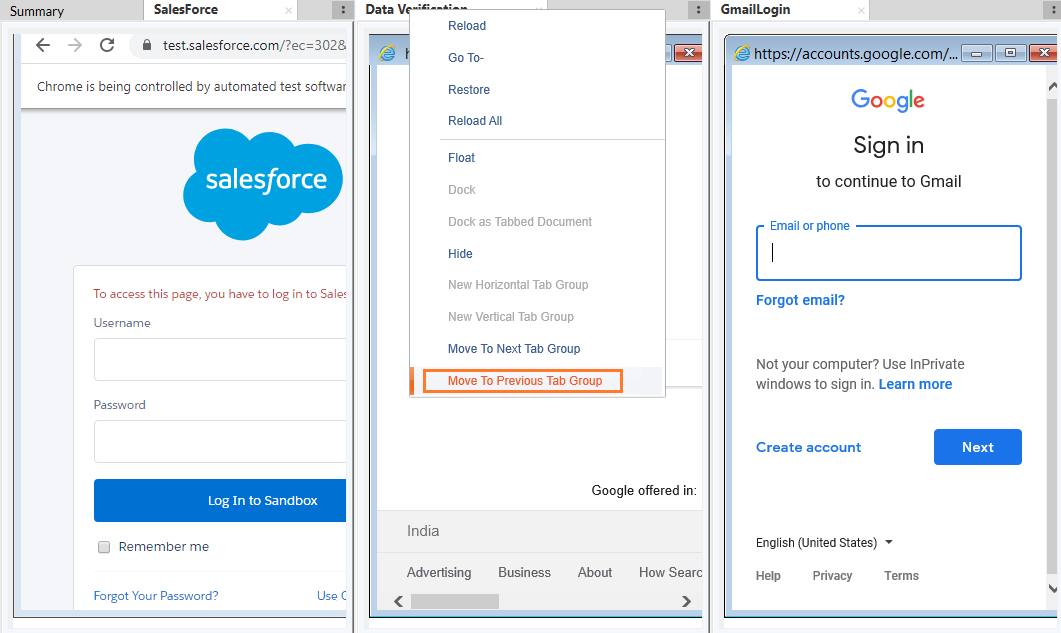
Quick Menu Context Options in AssistEdge Engage
Application Container contains all the applications. Applications are placed horizontally in the top. Use Quick menu options to re-position application tabs in UI.

Right click on the application to access the quick menu options:
- Reload the application
- Search a Query within AssistEdge Engage
- Reset the application
- Refresh all the applications
- Undock the application
- Dock the application
- Dock the application as Tabbed Document
- Hide the application
- Create New Horizontal Tab Group
- Create New Vertical Tab Group
- Move to Next Tab Group
- Move to Previous Tab group
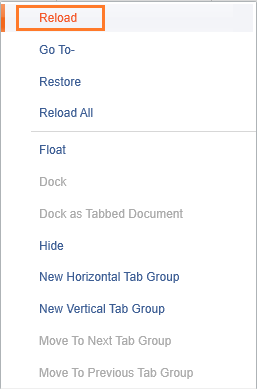
Reload the Application
Right click on the application and click Reload.
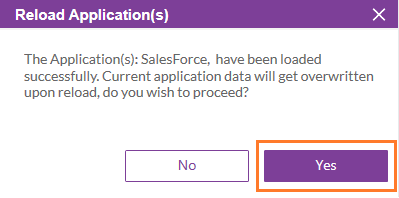
A confirmation box appears. click Yes to reload the application. The current application data get overwritten upon reload and it launches a fresh application.
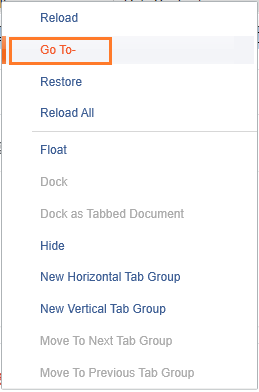
Search a Query within AssistEdge Engage
Click Go To- to dock a new application as a new tab in the application container. This feature helps you to launch the browser within the Engage client. The browser can be used as one of the applications in Engage UI. You can search a query without switching between the browser and Engage.
A tab is docked inside Engage just like any other browser. For example, Google home page is opened within the Go To- tab.

You can also access this feature from MAIN MENU > Utilties.
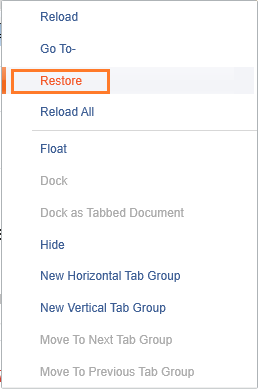
Reset the Application
Click Restore to reset the application. It takes the application to its home page.
Refresh all the Applications
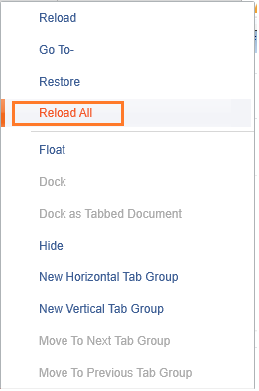
Click Reload All to refresh all the applications.
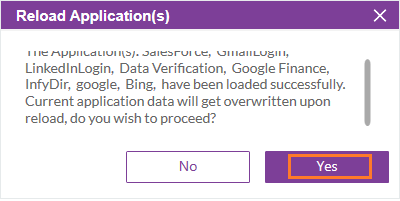
A confirmation box appears. Click Yes to reload all the applications. The current application data get overwritten upon reload and it launches fresh applications.
Undock the Application
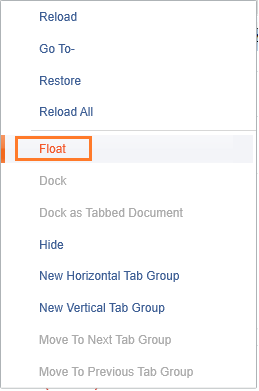
Click Float to undock an application from the application container. The application floats outside the Engage UI.
Dock the Application
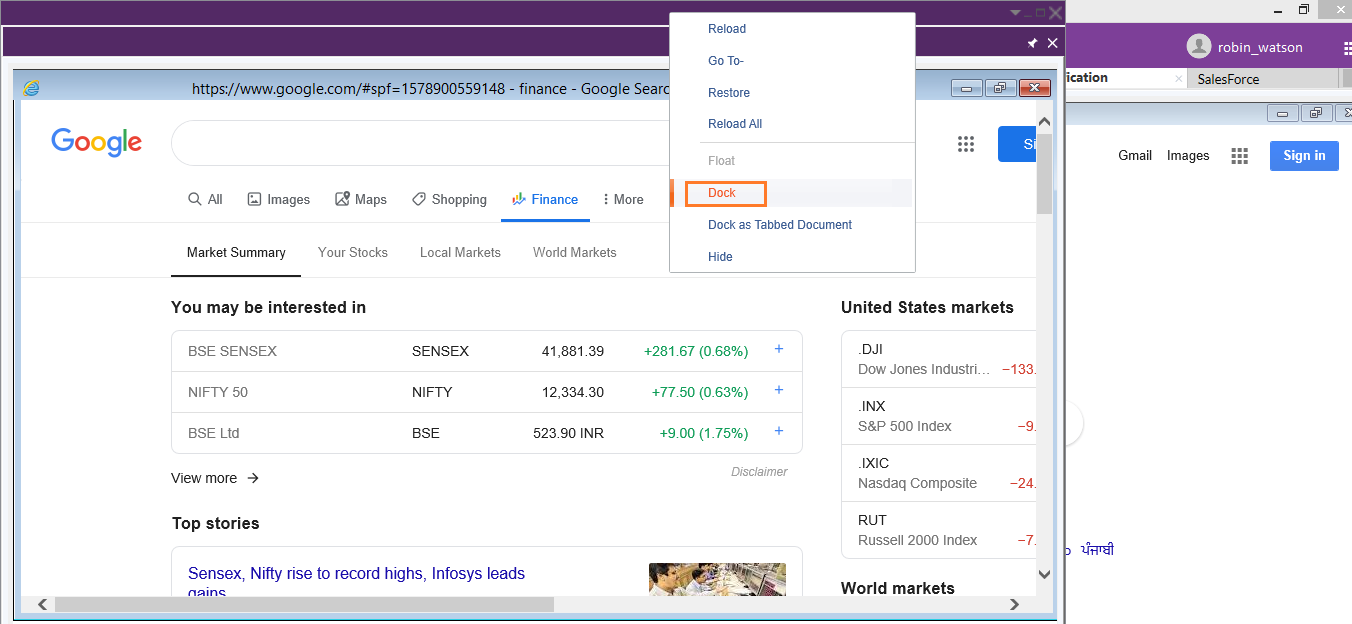
Right click on the top of the application, click Dock. The floating application docks back in the Engage UI.
|
NOTE: |
The Citrix based applications and Windows applications do not dock in Engage. |
|
Dock the Application as Tabbed Document
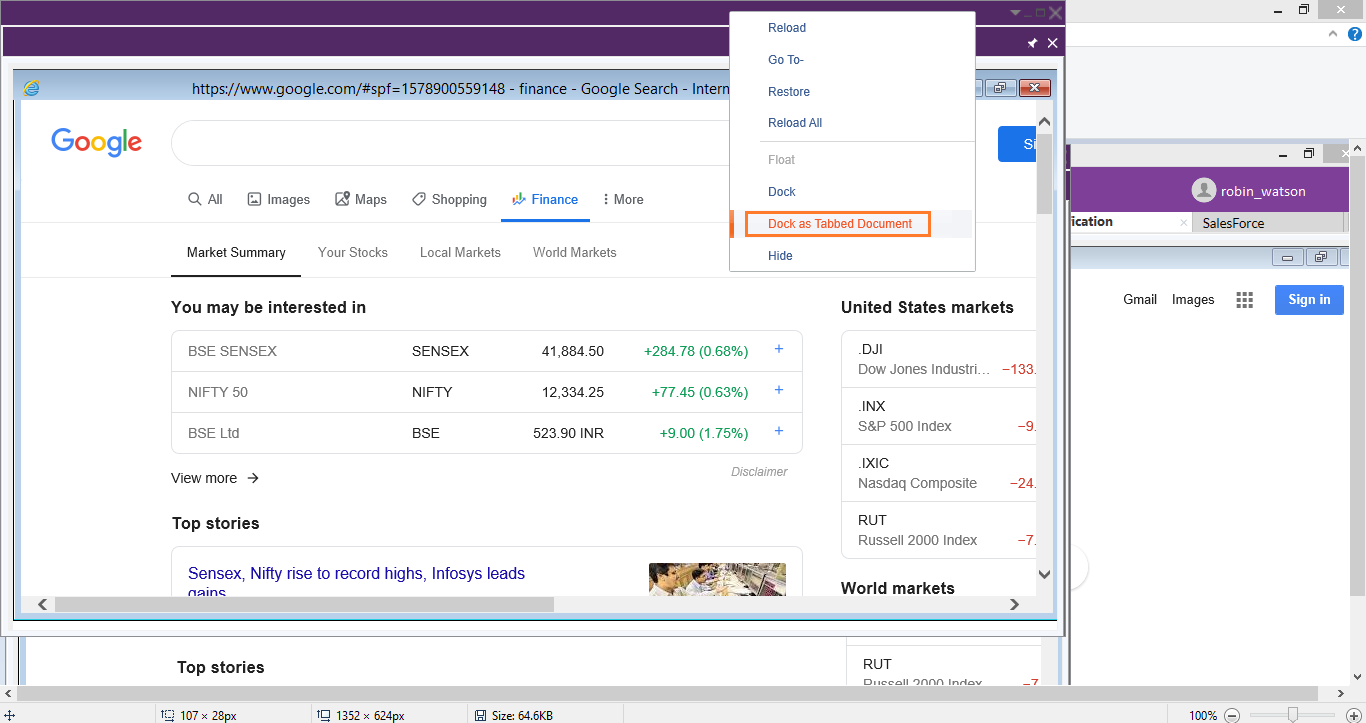
Right click on the top of the application, click Dock as Tabbed Document. Selected applications are docked as tabs within a new window in the application container.
Hide the Application
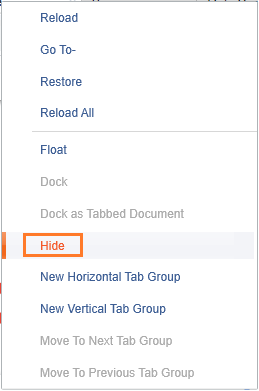
Click Hide to hide an application. Reload it from App Manager to make it reappear in the Application Container.
Create New Horizontal Tab Group
Click New Horizontal Tab Group to create a new horizontal tab within Engage UI.
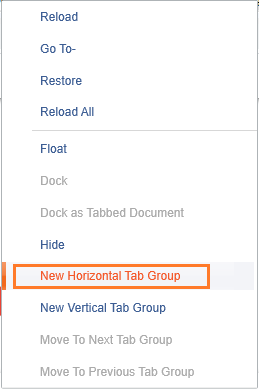
Click it one more time to add a new horizontal tab.
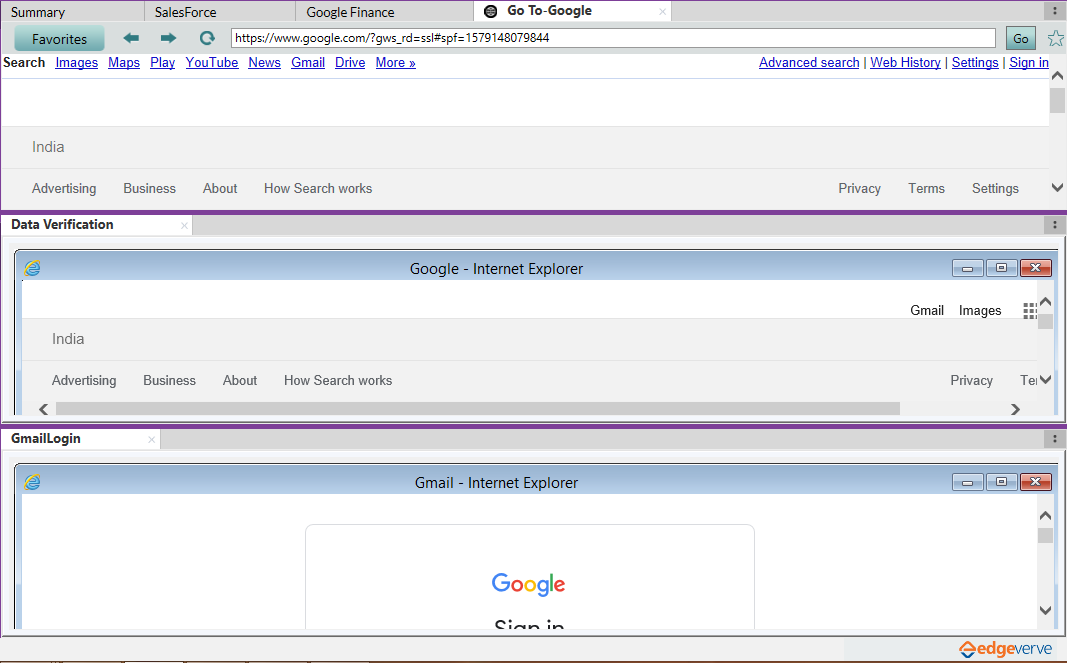
Go to MAIN MENU > View > Restore Default Layout to go back to the original setting.
Create New Vertical Tab Group
Click New Vertical Tab Group to create a new vertical tab within Engage UI. Click it one more time to add a new horizontal tab. Go to MAIN MENU > View > Restore Default Layout to go back to the original setting.
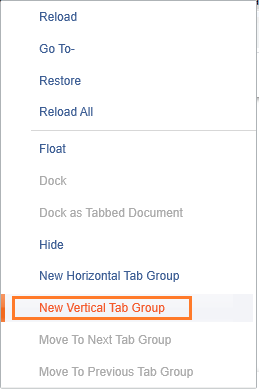
Click it one more time to add a new horizontal tab.
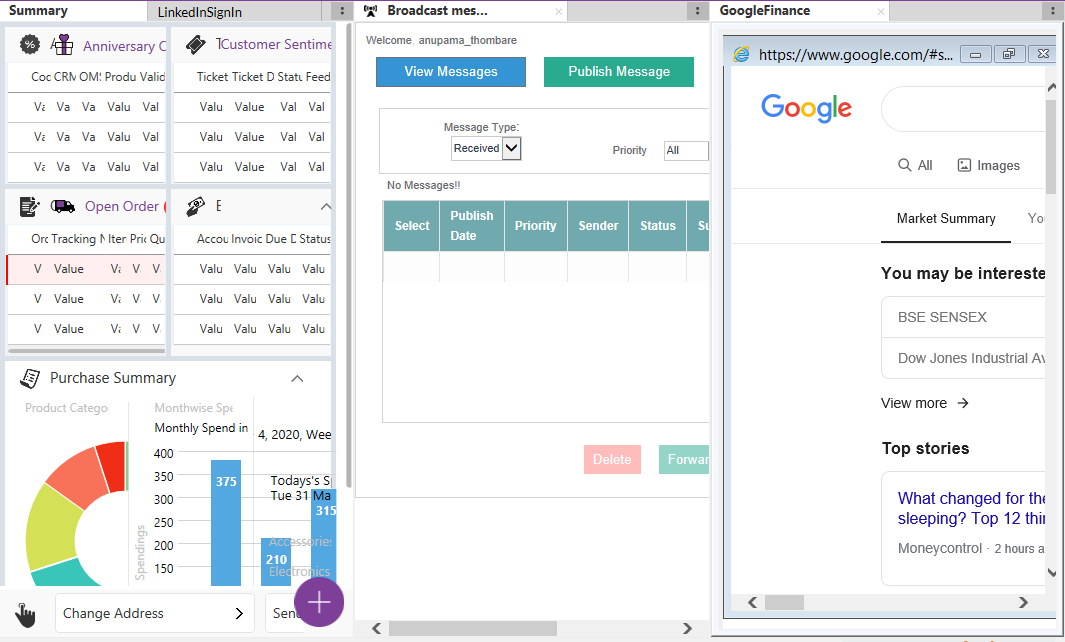
Go to MAIN MENU > View > Restore Default Layout to go back to the original setting.
Move to Next Tab Group
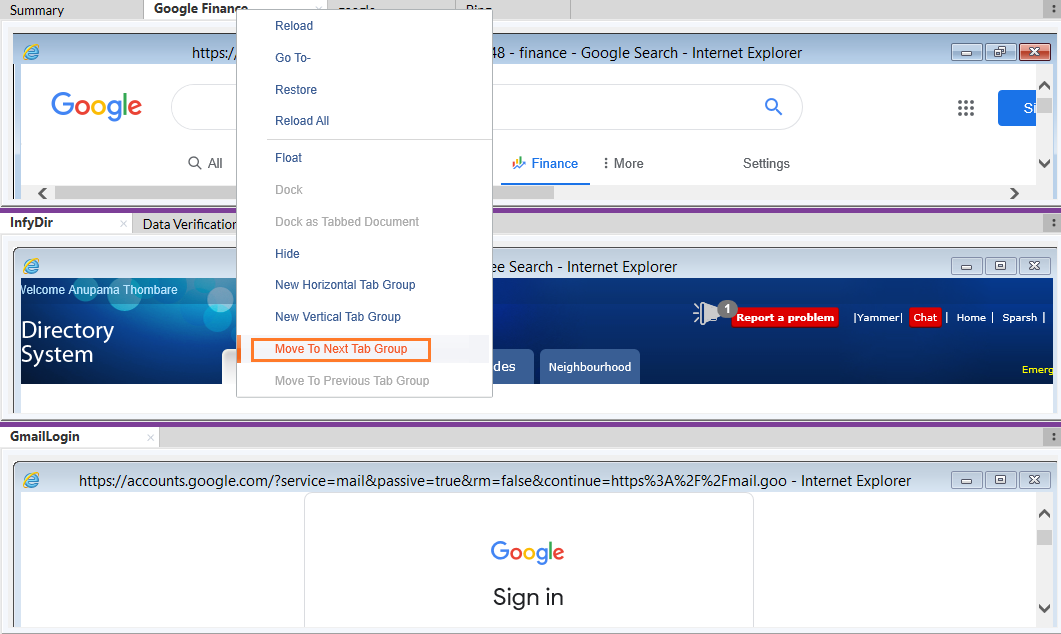
This option is available only when a new horizontal or a vertical tab is created, and an application is docked in that group. Click Move to Next Tab Group to dock the application to the next tab in the group.
The application is docked to the next tab.
Move to Previous Tab group
This option is available only when a new horizontal or a vertical tab is created, and an application is docked in that group. Select Move to Previous Tab Group to dock the application back to the previous tab in the group.
The application is docked back to the previous tab.