Customizing Alert and Notification
The alert and notification system is built with an extensible architecture.
Adding new Alerts
To add a custom alert, follow the below mentioned steps:
-
Create a class library in .NET 8.0 version.
-
Add a reference to below dlls. They are available in common pvc mount path “$common-volume-path/vanguard/extension” folder.
-
Quartz.dll
-
Quartz.Serialization.Json.dll
-
EV.AE.Vanguard.MonitorPeriodic.Core.dll
-
EV.AE.Utilities.Logging.Core.dll
-
EV.AE.Utils.Core.dll
-
EV.AE.Utilities.Interfaces.Core.Vanguard
-
-
Implement the abstract class PeriodicJobBase from EV.AE.Vanguard.MonitorPeriodic.Core.dll.
-
Pass all the required dependencies of the job through constructor, declare all the dependencies as private read-only variables and extend PeriodicJobBase base class constructor with ILogging, IDAlClient, IServiceProvider, ITenant and IEnumerable<IAlertFormatter> dependency:
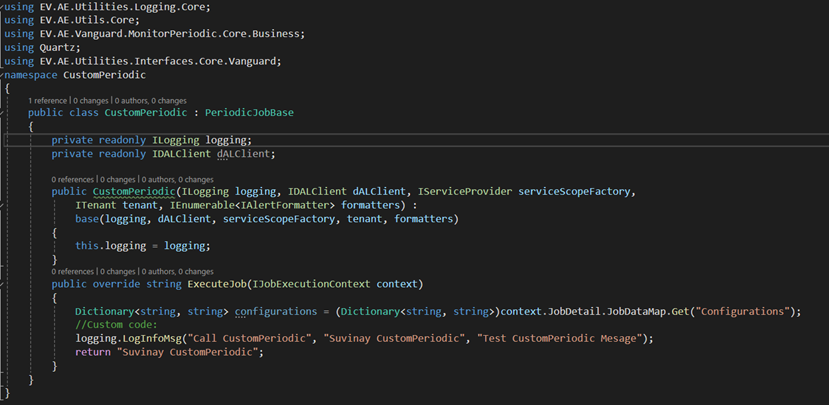
-
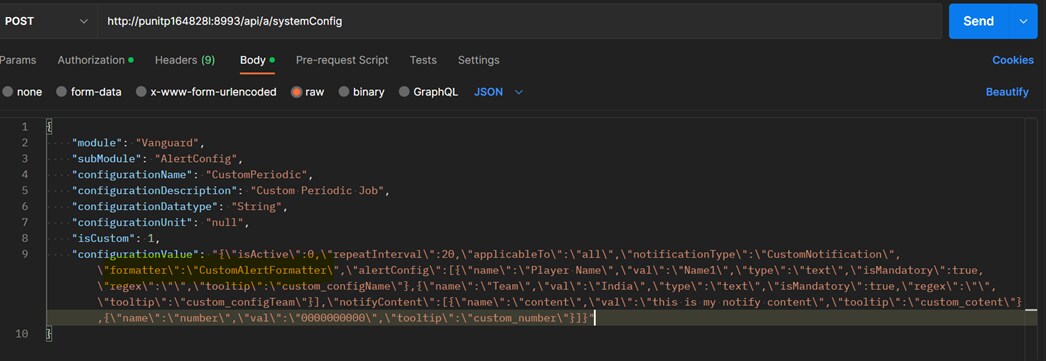
Create the new class entry in product database by calling Create API. See API-docs. Class name must be same as configurationName in Json payload. Make sure that the configurationValue Json is valid.
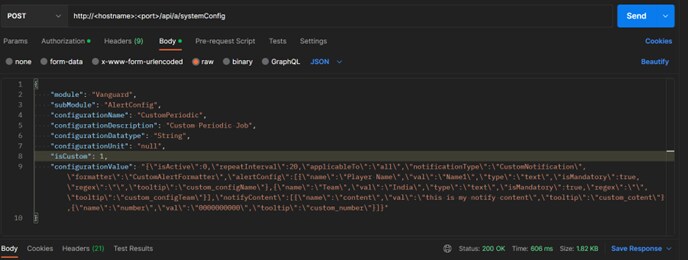
-
Refer API docs for sample JSON for the field configurationValue, below is the sample JSON.
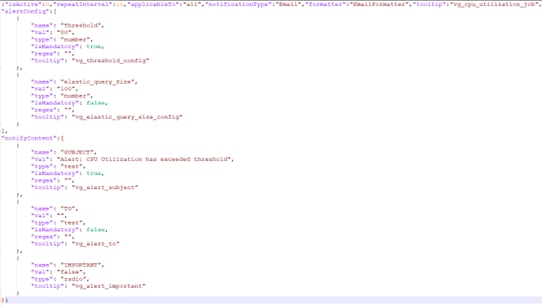
NOTE:
In alertConfig and notifyContent, objects name ,val,and type fields are mandatory. Also the value for each “name” field should be unique. -
After adding this data using Post API call, you should be able to view alerts in Admin->Module Configuration-> Vanguard-> Alert Configuration tab as below.
Click on Edit icon to enable / disable the alert.
NOTE:
Adding custom alert will not require vanguard restart. - Details of the ExecuteJob Method
- Input parameter (IJobExecutionContext context) – This is the configuration list and RepeatInterval provided in post Api Json payload. To access configurations, use below sample.

- Output parameter (string) - The method returns a string with an alert description. This is an input to email notification.
NOTE:
If there is no need to raise an alert, then return an empty string.
- Input parameter (IJobExecutionContext context) – This is the configuration list and RepeatInterval provided in post Api Json payload. To access configurations, use below sample.
- Build the DLL in Release, AnyCPU mode.
- Navigate to “$common-volume-path/vanguard/extension” folder and download the EV.AE.Vanguard.Core.deps.json file. It is recommended to create a backup copy of this file before making any modifications.
-
Update EV.AE.Vanguard.Core.deps.json with entries required for the new custom dll and its dependencies dlls. You can refer EV.AE.Vanguard.Monitor.PeriodicJobs.Core dll entry present in EV.AE.Vanguard.Core.deps.json file.
Entries should be done in section-
targets -> .NETCoreApp,Version=v8.0 -> EV.AE.Vanguard.Core/1.0.0 -> dependencies
-
targets -> .NETCoreApp,Version=v8.0
-
libraries
-
-
Place the DLL and updated EV.AE.Vanguard.Core.deps.json file at “$common-volume-path/vanguard/extension” folder.
-
Restart the Vanguard pod.
Adding new Formatter
By default, an email notification type is sent when an alert is raised. A custom formatter can also be configured. Follow the below steps to add a custom formatter.
- Create a class library in .NET 8.0 version.
- Add a reference to below dlls. They are available at common pvc mount path “$common-volume-path/vanguard/extension” folder.
- EV.AE.Utilities.EntityModels.Core.dll
- EV.AE.Utilities.Interfaces.Core.dll
- Implement Interface IAlertFormatter in the class. It is present in namespace EV.AE.Utilities.Interfaces.Core.Vanguard.
- Create empty default constructor for formatter, create another parameterized constructor and pass all the required dependencies through this constructor, declare all the dependencies as private read-only variables.
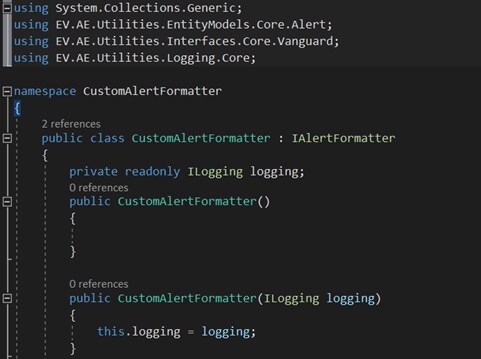
-
Class name must same as job Formatter in formatter key of configurationValue Json object as highlighted in below screenshot.
-
IAlertFormatter interface contains a method Format as displayed.
Details of the Format method:
This method returns a list of the alerts for which notification is sent.-
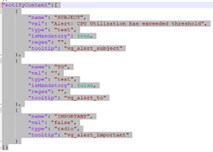
Input parameter (stringnotifyContent) – This is “notifyContent” object passed in “configurationValue” json payload. See the above screenshot. You can use this object to extract notification related information.
-
Input parameter (string alertDetail) – This is the content of the alert. For OOB alert, A JSON string is returned.
-
Input parameter (string alertName) – This is the name of the triggered alert.
-
Output parameter (List<SendItem>) - List of alerts to be sent.
-
-
Build the DLL in Release, AnyCPU mode. Place the DLL at “$common-volume-path/vanguard/extension” folder.
-
Restart the Vanguard pod.
Updating OOB Email Template
Follow the below steps to update the OOB email template:
- Download and update the file
Download the $common-volume/vanguard/extension/Monitor/Formatter/Template/”file.
Update the file
“_CONTENT_TO_REPLACE_” must be present in the template. This text is replaced with the message body during runtime.
Place the updated file at “$common-volume/vanguard/extension/Monitor/Formatter/Template/” location.
Restart the Vanguard pod.
Adding new CRON Alert
To add a custom alert, follow the below mentioned steps:
- Create a class library in .NET 8.0 version.
- Add a reference to below dlls. They are available in common pvc mount path “$common-volume-path/vanguard/extension” folder.
- Quartz.dll
- Quartz.Serialization.Json.dll
- EV.AE.Vanguard.Cron.Core.dll
- EV.AE.Utilities.Logging.Core.dll
- EV.AE.Utilities.Interfaces.Core.Vanguard;
- Implement the abstract class CronJobBase from EV.AE.Vanguard.Cron.Core.dll. Pass all the required dependencies of the job through constructor, declare all the dependencies as private read-only variables and extend CronJobBase base class constructor with logging and tenant dependency.
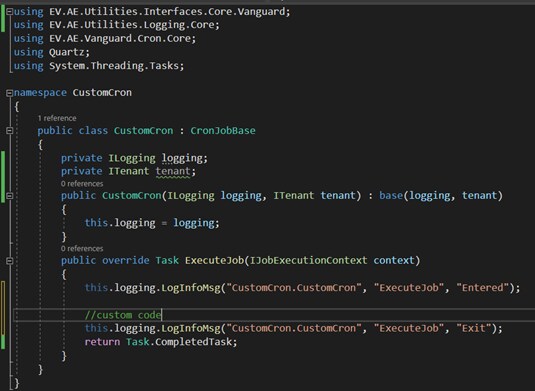
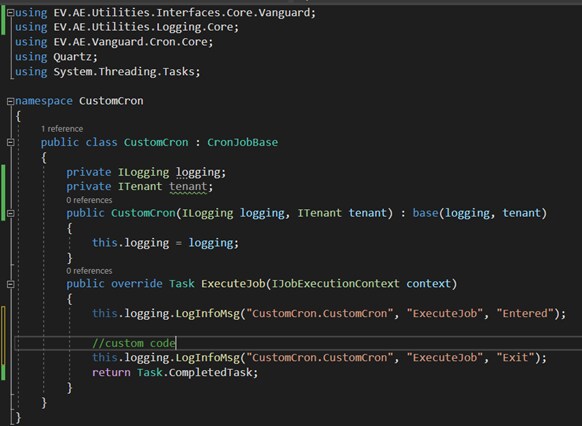
- Ensure to ExecuteJob returns Task.CompletedTask and should not return null.
NOTE:
- Make sure CRON expression should be valid.
- Product recommends a Job that should have a higher interval for execution. A job running at lower interval like seconds may rise issues with Product other bankground jobs execution.
- Build the DLL in Release, AnyCPU mode.
- Navigate to “$common-volume-path/vanguard/extension” folder and download the EV.AE.Vanguard.Core.deps.json file. It is recommended to create a backup copy of this file before making any modifications
- Update EV.AE.Vanguard.Core.deps.json with entries required for the new custom dll and its dependencies dlls. You can refer EV.AE.Vanguard.Cron.Core.dll entry present in EV.AE.Vanguard.Core.deps.json file.
Entries should be done in section- targets -> .NETCoreApp,Version=v8.0 -> EV.AE.Vanguard.Core/1.0.0 -> dependencies
- targets -> .NETCoreApp,Version=v8.0
- libraries
-
Place the DLL and updated EV.AE.Vanguard.Core.deps.json file at “$common-volume-path/vanguard/extension” folder.
- Restart the Vanguard pod.
- To add a CRON job, invoke the BackgroundJob Create API to create a new job entry in the product database. For more details, see the product api docs.
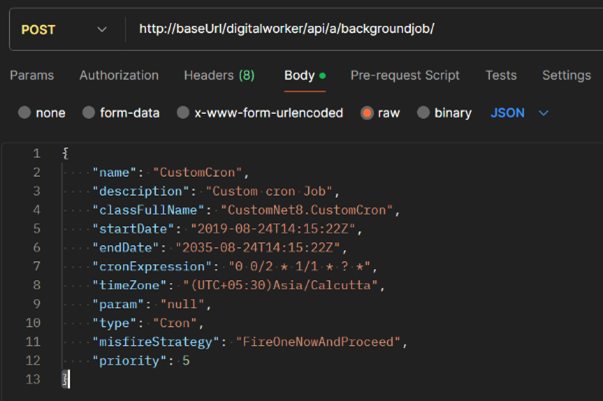
- Invoke the search API to verify the newly created entry. For more details, see product api docs.